Overview
Module: Module 1: Infrastructure & Addressing
Activity type: Lab (Practice)
Objective: Given a host and a guest requirement, the learner can choose Type 1 vs Type 2 virtualization, create a working Linux guest (VirtualBox or Proxmox), and prove networking, DNS, and SSH with recorded evidence.
Before you start
- Reading complete
- Lesson Feynman teach-back drafted (you may refine after the lab)
Guided lab
Pick one primary path and finish every step. Path B (Proxmox) is what later Academy classes expect. Path A (VirtualBox) is a valid first finish if you only have one computer today, then schedule Path B before Class 2.
Use the Windows / Linux toggle at the top of this class for host commands. Guest Linux commands are the same on both paths once you are inside the VM.
Replace placeholders: YOUR-IP, GUEST-IP, YOURUSER, proxmox.iso, ubuntu.iso.
Path B: Proxmox on spare hardware (preferred)
You need: a PC/laptop you can wipe, an 8 GB+ USB stick, a network cable to your router/switch, and a second computer with a browser + terminal.
Protect your data first.
Proxmox install can erase the disk you select. Unplug extra drives if unsure. Copy anything important off this machine. List disks and write model/size in your workbook:
Get-Disk | Format-Table Number, FriendlyName, Size, PartitionStyle
Get-Volume | Format-Table DriveLetter, FileSystemLabel, SizeRemaining, Size
lsblk -o NAME,SIZE,MODEL,FSTYPE,MOUNTPOINT
df -h
Turn on CPU virtualization in firmware.
Restart the target PC → enter setup (Del / F2 / F10 / F12) → enable Intel VT-x / VMX or AMD-V / SVM → save → reboot. Then confirm from the OS you use for downloads:
systeminfo | findstr /i "Hyper-V Virtualization"
Get-CimInstance Win32_Processor | Select-Object Name, VirtualizationFirmwareEnabled
You want firmware virtualization Yes / VirtualizationFirmwareEnabled : True.
egrep -c '(vmx|svm)' /proc/cpuinfo
# Result should be > 0. Also useful:
lscpu | egrep 'Virtualization|Hypervisor|Flags'
Download the Proxmox ISO and write the USB.
Download the current Proxmox VE ISO from the official site into a folder you can find (example: Downloads). Identify the USB device letter/name carefully, wrong disk = data loss.
Rufus GUI is safest for beginners (select USB → select ISO → mode DD → Start).
Optional PowerShell check of removable disks before you write:
Get-Disk | Where-Object BusType -eq 'USB' | Format-Table Number, FriendlyName, Size
Get-Volume | Format-Table DriveLetter, FileSystemLabel, DriveType, Size
lsblk -o NAME,SIZE,MODEL,TRAN,MOUNTPOINT
# Example only: YOUR USB might be /dev/sdb or /dev/sdc, NOT /dev/sda (usually the main disk)
# Unmount partitions first if mounted, then:
sudo dd if=$HOME/Downloads/proxmox.iso of=/dev/sdX bs=4M status=progress oflag=sync
sync
Replace proxmox.iso and /dev/sdX with your real paths. Triple-check sdX.
Boot the spare PC from USB with Ethernet plugged in.
Cable into router/switch. Boot menu → USB → Install Proxmox VE. No CLI on this step, watch the installer.
Walk the installer and write the network plan before Install.
Agree → choose target disk → locale → strong root password. Set hostname, static IP (example 192.168.1.50), gateway, DNS. Copy every value into the workbook, then install. Remove USB and reboot.
Open the web UI, then prove it from the CLI too.
Browser: https://YOUR-IP:8006 → accept the cert warning → login root. Close the no-subscription nag if it appears.
curl.exe -kI https://YOUR-IP:8006
ping -n 3 YOUR-IP
curl -kI https://YOUR-IP:8006
ping -c 3 YOUR-IP
On the Proxmox host itself (local console or later via SSH as root), also run:
pveversion
ip -br addr
ip route
cat /etc/network/interfaces
Make storage accept VM disks: UI plus verify in shell.
UI: Datacenter → Storage → local → Edit → enable Disk image (+ ISO / Container template) → OK.
Proxmox host shell (node → Shell, or SSH as root):
pvesm status
pvesm list local
cat /etc/pve/storage.cfg
df -h /var/lib/vz
Confirm local is listed and you understand free space. If a single-disk install left capacity stuck on local-lvm, follow current Proxmox storage docs before creating guests.
Upload a Linux ISO (UI) and confirm the file on disk.
UI: local → ISO Images → Upload (Debian or Ubuntu Server).
Proxmox shell:
ls -lh /var/lib/vz/template/iso/
You should see your .iso listed.
Create the VM (UI) and verify with qm.
UI Create VM: ID 100, name lab-linux-01, ISO from local, Linux, disk 20–32 GB, 2 vCPU, 2048–4096 MB RAM, NIC bridge vmbr0 VirtIO → Finish.
Proxmox shell:
qm config 100
qm list
qm start 100
qm status 100
Install Linux in the console, then enable SSH from the guest.
UI: select VM → Console → install OS (virtual disk only). Prefer enabling OpenSSH during Ubuntu Server install. If you skipped it, after first login inside the guest:
sudo apt update
sudo apt install -y openssh-server
sudo systemctl enable --now ssh
sudo systemctl status ssh --no-pager
Prove the guest network from inside the VM.
Guest terminal:
ip -br addr
ip route
ping -c 3 1.1.1.1
ping -c 3 $(ip route | awk '/default/ {print $3; exit}')
getent hosts example.com
hostname -I
Write down `GUEST-IP`. If `1.1.1.1` works but `example.com` fails, fix DNS, do not reinstall.
SSH in from your workstation.
Windows 10/11 usually includes OpenSSH. In PowerShell or CMD:
ssh YOURUSER@GUEST-IP
First connect: type yes to trust the host key. If ssh is missing:
Add-WindowsCapability -Online -Name OpenSSH.Client~~~~0.0.1.0
ssh YOURUSER@GUEST-IP
# Optional connectivity checks first:
ping -c 2 GUEST-IP
nc -vz GUEST-IP 22
Inside the SSH session, re-run `hostname` and `ip -br addr` to prove you are on the guest.
Create an LXC and compare with CLI.
UI: download a Debian CT template → Create CT ID 200, hostname lab-ct-01, 8 GB disk, 1 CPU, 1024 MB, vmbr0.
Proxmox shell:
pveam update
pveam available | head
pct list
pct start 200
pct status 200
pct enter 200
Inside the CT (and separately in the VM), run:
free -h
uname -a
uptime
Type `exit` to leave `pct enter`. Note: CT `uname` matches the **host** kernel; VM `uname` is its own.
Snapshot, change a file with CLI, roll back, prove it.
Proxmox shell (VM should be stopped for a clean snapshot on many setups):
qm shutdown 100
qm status 100
qm snapshot 100 before-break --description "class1 gate"
qm listsnapshot 100
qm start 100
In the guest (console or SSH):
echo "break-me" > /tmp/DELETE-ME
cat /tmp/DELETE-ME
ls -l /tmp/DELETE-ME
Then roll back:
qm shutdown 100
qm rollback 100 before-break
qm start 100
Guest again:
ls /tmp/DELETE-ME || echo "GOOD: file gone after rollback"
Record snapshot name `before-break` in the workbook.
Path A: VirtualBox on your daily computer (acceptable first finish)
You need: your everyday PC, ~20 GB free disk, VirtualBox, and a terminal. This path does not wipe your host OS.
Turn on CPU virtualization, then verify in the terminal.
Firmware: enable VT-x / AMD-V, save, boot to desktop.
systeminfo | findstr /i "Virtualization"
Get-CimInstance Win32_Processor | Select-Object VirtualizationFirmwareEnabled
egrep -c '(vmx|svm)' /proc/cpuinfo
Install VirtualBox and confirm the CLI works.
Install VirtualBox (+ Extension Pack) from the official site. Then:
& "C:\Program Files\Oracle\VirtualBox\VBoxManage.exe" --version
& "C:\Program Files\Oracle\VirtualBox\VBoxManage.exe" list extpacks
If that path fails, open a prompt from the VirtualBox install folder, or add it to PATH.
VBoxManage --version
VBoxManage list extpacks
Also start downloading your Ubuntu/Debian ISO while this installs.
Create the VM with the GUI or with VBoxManage.
GUI: New → name lab-linux-01, Linux 64-bit, 2048 MB RAM, VDI dynamic ≥20 GB → then Settings → System → Processor → 2 CPUs if host has ≥4 cores.
Or create from CLI (adjust ISO path and memory):
$VB = "C:\Program Files\Oracle\VirtualBox\VBoxManage.exe"
& $VB createvm --name "lab-linux-01" --ostype "Ubuntu_64" --register
& $VB modifyvm "lab-linux-01" --memory 2048 --cpus 2 --nic1 nat --vram 16
& $VB createhd --filename "$env:USERPROFILE\VirtualBox VMs\lab-linux-01\lab-linux-01.vdi" --size 20480 --format VDI
& $VB storagectl "lab-linux-01" --name "SATA" --add sata --controller IntelAhci
& $VB storageattach "lab-linux-01" --storagectl "SATA" --port 0 --device 0 --type hdd --medium "$env:USERPROFILE\VirtualBox VMs\lab-linux-01\lab-linux-01.vdi"
& $VB storageattach "lab-linux-01" --storagectl "SATA" --port 1 --device 0 --type dvddrive --medium "$env:USERPROFILE\Downloads\ubuntu.iso"
& $VB list vms
VBoxManage createvm --name "lab-linux-01" --ostype "Ubuntu_64" --register
VBoxManage modifyvm "lab-linux-01" --memory 2048 --cpus 2 --nic1 nat --vram 16
mkdir -p "$HOME/VirtualBox VMs/lab-linux-01"
VBoxManage createhd --filename "$HOME/VirtualBox VMs/lab-linux-01/lab-linux-01.vdi" --size 20480 --format VDI
VBoxManage storagectl "lab-linux-01" --name "SATA" --add sata --controller IntelAhci
VBoxManage storageattach "lab-linux-01" --storagectl "SATA" --port 0 --device 0 --type hdd --medium "$HOME/VirtualBox VMs/lab-linux-01/lab-linux-01.vdi"
VBoxManage storageattach "lab-linux-01" --storagectl "SATA" --port 1 --device 0 --type dvddrive --medium "$HOME/Downloads/ubuntu.iso"
VBoxManage list vms
Start the VM and install the guest OS.
& "C:\Program Files\Oracle\VirtualBox\VBoxManage.exe" startvm "lab-linux-01" --type gui
VBoxManage startvm "lab-linux-01" --type gui
Complete the installer in the window. Virtual disk wipe ≠ host wipe. Host key to release mouse: Right Ctrl. After install, detach the ISO if it keeps booting the installer:
& "C:\Program Files\Oracle\VirtualBox\VBoxManage.exe" storageattach "lab-linux-01" --storagectl "SATA" --port 1 --device 0 --type dvddrive --medium none
VBoxManage storageattach "lab-linux-01" --storagectl "SATA" --port 1 --device 0 --type dvddrive --medium none
Prove internet from the guest with ping.
Inside the Linux guest terminal:
ping -c 3 1.1.1.1
ip -br addr
ip route
From the host, you can also check the VM is running:
& "C:\Program Files\Oracle\VirtualBox\VBoxManage.exe" showvminfo "lab-linux-01" --machinereadable | findstr /i "VMState= nic1"
ping -n 3 1.1.1.1
VBoxManage showvminfo "lab-linux-01" --machinereadable | egrep 'VMState=|nic1='
ping -c 3 1.1.1.1
Pause and save-state from the GUI or CLI.
$VB = "C:\Program Files\Oracle\VirtualBox\VBoxManage.exe"
& $VB controlvm "lab-linux-01" pause
& $VB controlvm "lab-linux-01" resume
& $VB controlvm "lab-linux-01" savestate
& $VB startvm "lab-linux-01" --type gui
VBoxManage controlvm "lab-linux-01" pause
VBoxManage controlvm "lab-linux-01" resume
VBoxManage controlvm "lab-linux-01" savestate
VBoxManage startvm "lab-linux-01" --type gui
Snapshot, break a file, restore.
$VB = "C:\Program Files\Oracle\VirtualBox\VBoxManage.exe"
& $VB snapshot "lab-linux-01" take "before-break" --description "class1"
VBoxManage snapshot "lab-linux-01" take "before-break" --description "class1"
Inside the guest:
mkdir -p ~/DELETE-ME
echo test > ~/DELETE-ME/note.txt
ls ~/DELETE-ME
Shut down the guest, then restore:
$VB = "C:\Program Files\Oracle\VirtualBox\VBoxManage.exe"
& $VB controlvm "lab-linux-01" acpipowerbutton
# wait until powered off, then:
& $VB snapshot "lab-linux-01" restore "before-break"
& $VB startvm "lab-linux-01" --type gui
VBoxManage controlvm "lab-linux-01" acpipowerbutton
# wait until powered off, then:
VBoxManage snapshot "lab-linux-01" restore "before-break"
VBoxManage startvm "lab-linux-01" --type gui
Guest check: ls ~/DELETE-ME should fail (folder gone).
Inspect NAT vs bridged with CLI.
& "C:\Program Files\Oracle\VirtualBox\VBoxManage.exe" showvminfo "lab-linux-01" | findstr /i "NIC 1"
VBoxManage showvminfo "lab-linux-01" | egrep -i 'NIC 1'
Guest: ip -br addr. NAT often shows 10.0.2.x. Bridged usually matches your LAN. Leave NAT unless you need LAN SSH.
Record evidence (workbook + command output).
& "C:\Program Files\Oracle\VirtualBox\VBoxManage.exe" --version
& "C:\Program Files\Oracle\VirtualBox\VBoxManage.exe" showvminfo "lab-linux-01" --machinereadable | findstr /i "name= memory= cpus= VMState= nic1"
& "C:\Program Files\Oracle\VirtualBox\VBoxManage.exe" snapshot "lab-linux-01" list
VBoxManage --version
VBoxManage showvminfo "lab-linux-01" --machinereadable | egrep 'name=|memory=|cpus=|VMState=|nic1='
VBoxManage snapshot "lab-linux-01" list
Paste version, RAM, CPUs, NIC mode, and snapshot name into the workbook.
Plan Path B before Class 2.
Write spare-PC plan + USB + Ethernet. Quick reachability test you will use later:
# After Proxmox exists:
curl.exe -kI https://PROXMOX-IP:8006
# After Proxmox exists:
curl -kI https://PROXMOX-IP:8006
Break / fix
Break it, then fix it
Network break
Break one thing, then repair with commands.
VirtualBox: disable NIC, watch ping fail, re-enable NAT:
$VB = "C:\Program Files\Oracle\VirtualBox\VBoxManage.exe"
& $VB controlvm "lab-linux-01" nic1 null
# in guest: ping -c 2 1.1.1.1  (should fail)
& $VB controlvm "lab-linux-01" nic1 nat
# in guest: ping -c 2 1.1.1.1  (should work)
VBoxManage controlvm "lab-linux-01" nic1 null
# guest: ping -c 2 1.1.1.1
VBoxManage controlvm "lab-linux-01" nic1 nat
# guest: ping -c 2 1.1.1.1
Proxmox: wrong bridge then fix (host shell):
qm config 100 | grep -i net
qm set 100 --delete net0
# guest loses link: then restore:
qm set 100 --net0 virtio,bridge=vmbr0
qm config 100 | grep -i net
Guest proof order (run after each change):
ip -br link
ip -br addr
ip route
ping -c 2 1.1.1.1
getent hosts example.com
Snapshot break
Create a visible file, roll back, prove it vanished (Path B qm rollback or Path A VBoxManage snapshot … restore from the lab above). Do not continue until ls shows the file is gone.
Feedback / common mistakes
- Installing a Type 1 hypervisor onto the only copy of important data.
- Giving one guest nearly all RAM and starving the host (or your browser).
- Treating snapshots as independent off-box backups.
- Assuming LXC and Docker are the same thing.
- Using Wi-Fi as the default Proxmox uplink without understanding bridge limits.
- Turning on bridged networking, shared folders, and clipboard sharing all at once “for convenience.”
- Changing IP, bridge, firewall, and DNS simultaneously during diagnosis.
- Skipping firmware virtualization and blaming the ISO when 64-bit guests fail.
Lab gate
All boxes must be true before the next class unlocks. If you fail: feedback → targeted review → new practice → reassess.
- [ ] You can explain Type 1 vs Type 2 without reading notes.
- [ ] Firmware virtualization (VT-x or AMD-V) is enabled on the machine you use for guests.
- [ ] A guest OS boots and you can log in (VirtualBox or Proxmox VM).
- [ ] You demonstrated pause/save-state or a Proxmox start/stop cycle and recorded it.
- [ ] You took a snapshot (or Proxmox snapshot), changed something, restored, and proved it.
- [ ] Gateway, internet IP, and DNS tests pass independently on the guest (or you documented the exact failing layer).
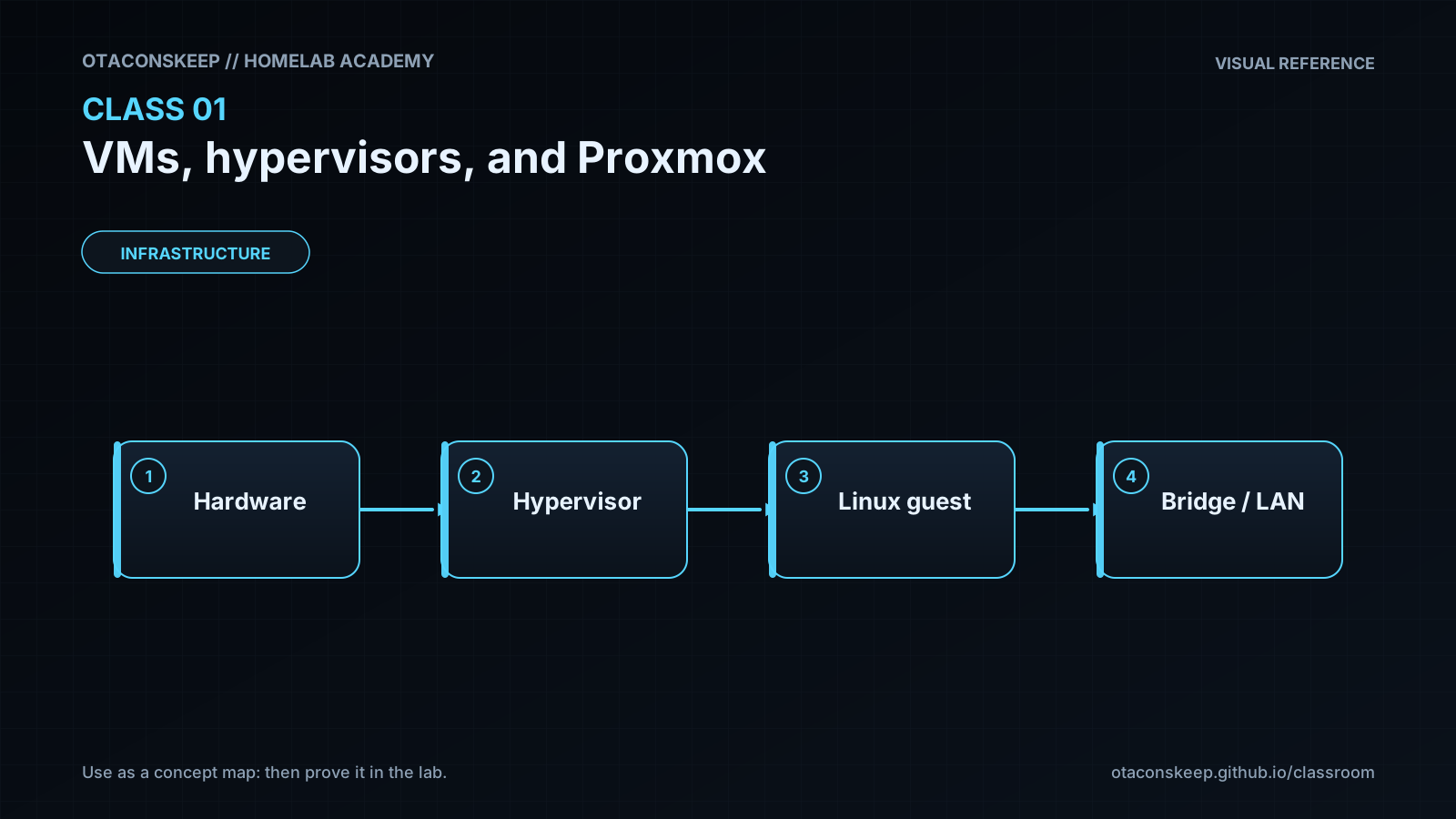
- [ ] If on Proxmox: UI reachable at the recorded address, SSH to the VM works, and you can explain physical NIC → bridge → guest NIC.
- [ ] If on VirtualBox only: workbook includes a dated plan for moving to Proxmox before Class 2 labs that need it.
- [ ] Prior-knowledge check answered
- [ ] Feynman teach-back completed (Explain, Simplify, Example, Weak spot, Retry)
- [ ] Independent practice completed
- [ ] Retrieval check attempted (target ≥80% when scored)
- [ ] Evidence recorded in workbook / verification matrix