Overview
Module: Module 3: Home Assistant & Secure Access
Activity type: Lab (Practice)
Objective: Given a Home Assistant install path, the learner can identify device/entity/area/integration, build a minimal dashboard, and prove backup + restore evidence.
Before you start
- Reading complete
- Lesson Feynman teach-back drafted (you may refine after the lab)
Guided lab
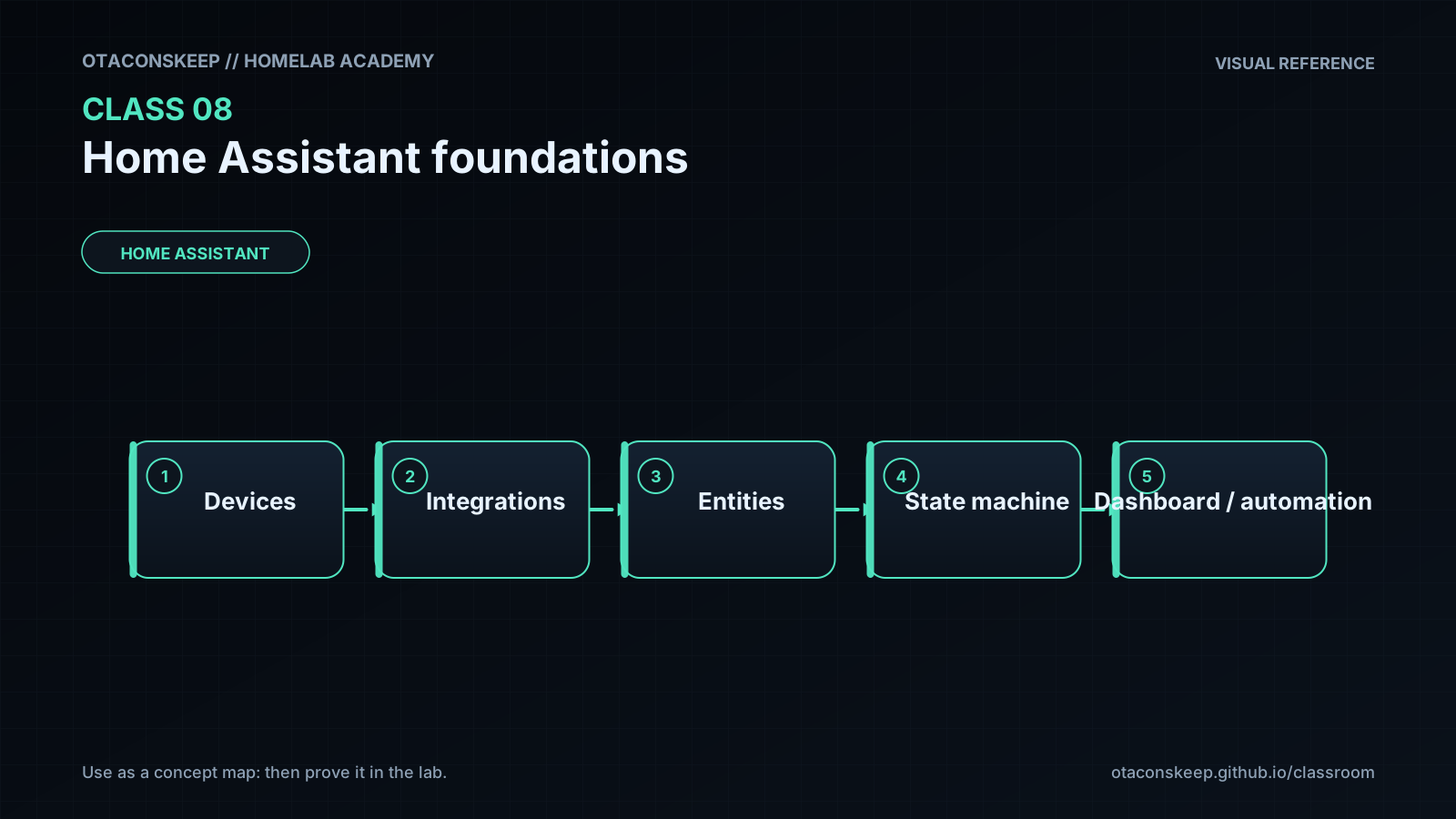
Goal: a reachable Home Assistant instance, one stable entity, dashboard proof, restart proof, and a backup you can restore from.
Prefer HA OS in a VM (Class 1) or a documented Container install. Record which one you use.
Deploy or document the install.
If new VM: create from Class 1, attach HA OS image per current docs, boot, note the onboarding URL. If Container:
# Example pattern: follow current HA Container docs for exact compose:
mkdir -p ~/ha-config
docker compose ps
# After your compose exists:
curl -sI http://127.0.0.1:8123/ | head
curl.exe -sI http://127.0.0.1:8123/
Stabilize the LAN address. Reserve DHCP or set static IP. Record http://HA-IP:8123 in the workbook.
ping -c 2 HA-IP
curl -sI http://HA-IP:8123/ | head
ping -n 2 HA-IP
curl.exe -sI http://HA-IP:8123/
Complete onboarding with a strong unique password, correct location/time zone. Do not reuse your email password.
Add one safe local integration (demo/sun/input helper is fine) or a local device you own.
Assign area + rename entity ID before automations depend on it (Settings → Devices & services / Entities). Write old→new ID in the workbook.
Dashboard card showing state + control for that entity.
Developer Tools proof.
# From a machine that can reach HA: Long-Lived Token in password manager only:
export HA=http://HA-IP:8123
export TOKEN='YOUR_LONG_LIVED_TOKEN'
curl -s -H "Authorization: Bearer $TOKEN" -H "Content-Type: application/json" \
  "$HA/api/states/ENTITY_ID" | head -c 400; echo
$HA = "http://HA-IP:8123"
$TOKEN = "YOUR_LONG_LIVED_TOKEN"
curl.exe -s -H "Authorization: Bearer $TOKEN" -H "Content-Type: application/json" "$HA/api/states/ENTITY_ID"
Also use UI Developer Tools → States / Services to inspect attributes and call one safe service (example: toggle an input_boolean).
Restart HA and prove recovery. UI restart or host reboot. Confirm entity + dashboard return. Time the outage in the workbook.
Create a backup (HA OS: Settings → System → Backups). Copy the backup file off-box.
mkdir -p ~/backups/ha
# Copy from the path your install uses, e.g. backup share or download via UI
ls -lh ~/backups/ha
sha256sum ~/backups/ha/*.tar 2>/dev/null | tee ~/backups/ha/SHA256SUMS
New-Item -ItemType Directory -Force $HOME\backups\ha | Out-Null
Get-FileHash $HOME\backups\ha\* -Algorithm SHA256 | Format-Table
Write the restore procedure in the workbook. If production risk is high, restore into a disposable VM instead of overwriting the live box.
Break / fix
Break/fix
-
Rename an entity after a dashboard depends on it, observe break, rename back or update the card.
-
Stop the HA VM/container briefly; confirm UI down; start; confirm recovery.
# Container example:
docker compose stop homeassistant
curl -sI --max-time 3 http://HA-IP:8123/ || echo EXPECTED_DOWN
docker compose start homeassistant
curl -sI http://HA-IP:8123/ | head
- Attempt action on
unavailablevsoffentities; record the difference.
Feedback / common mistakes
```text
power/network -> HA process up -> UI loads -> entity exists -> correct state -> service call -> automation
```
Lab gate
All boxes must be true before the next class unlocks. If you fail: feedback → targeted review → new practice → reassess.
- [ ] Installation model is documented.
- [ ] One integration supplies a working entity.
- [ ] Entity state and attributes can be inspected.
- [ ] A safe manual action succeeds.
- [ ] Dashboard survives restart.
- [ ] A current backup exists outside the instance.
- [ ] The student can locate the appropriate restore procedure.
- [ ] Prior-knowledge check answered
- [ ] Feynman teach-back completed (Explain, Simplify, Example, Weak spot, Retry)
- [ ] Independent practice completed
- [ ] Retrieval check attempted (target ≥80% when scored)
- [ ] Evidence recorded in workbook / verification matrix