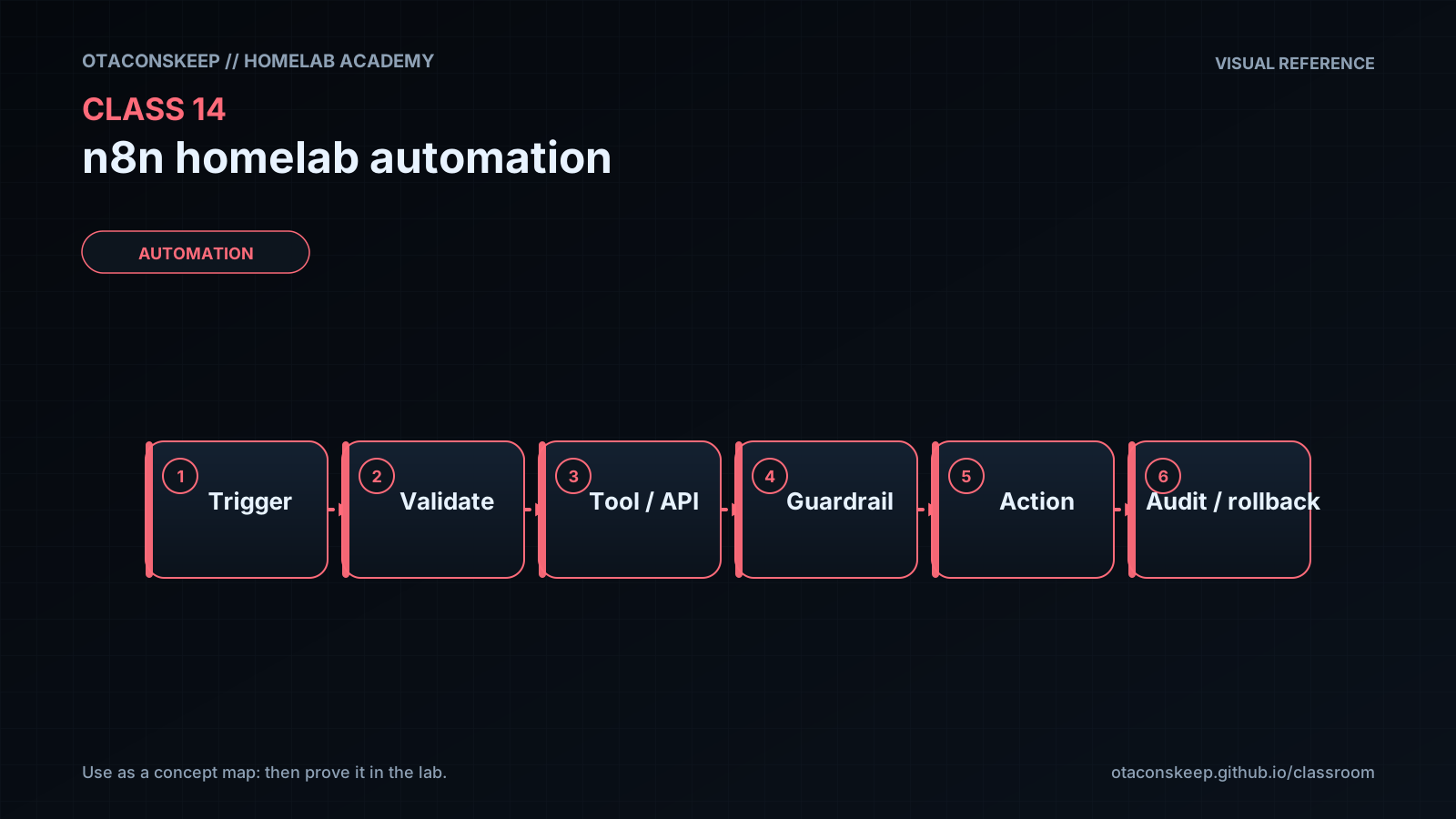
Overview
Module: Module 5: Workflow Automation (n8n)
Activity type: Lab (Practice)
Objective: Given a lab-only Docker network, the learner can run n8n, build an RSS digest workflow explaining item cardinality, and require human approval before any mutating Keep Agent / SSH action.
Before you start
- Reading complete
- Lesson Feynman teach-back drafted (you may refine after the lab)
Guided lab
Prereqs: Class 2 Compose working on a Linux host/VM; Discord or Telegram you control; optional Ollama or an API key you are allowed to use.
Path A: Install n8n with Compose
Create a dedicated project directory.
mkdir -p ~/n8n-lab && cd ~/n8n-lab
mkdir $HOME\n8n-lab -Force
cd $HOME\n8n-lab
Write a minimal Compose file (adjust ports if 5678 is taken). Prefer current official n8n image tags from docs, pin an explicit version when you find one you trust:
cat > compose.yaml <<'YAML'
name: n8n-lab
services:
  n8n:
    image: n8nio/n8n:latest
    restart: unless-stopped
    ports:
      - "5678:5678"
    environment:
      - N8N_HOST=0.0.0.0
      - N8N_PORT=5678
      - N8N_PROTOCOL=http
      - NODE_ENV=production
      - WEBHOOK_URL=http://N8N-HOST:5678/
      - GENERIC_TIMEZONE=America/Los_Angeles
    volumes:
      - ./n8n_data:/home/node/.n8n
YAML
# Replace WEBHOOK_URL host with your lab IP/DNS after first boot.
docker compose config
docker compose pull
docker compose up -d
docker compose ps
docker compose logs --tail=40 n8n
@'
name: n8n-lab
services:
  n8n:
    image: n8nio/n8n:latest
    restart: unless-stopped
    ports:
      - "5678:5678"
    environment:
      - N8N_HOST=0.0.0.0
      - N8N_PORT=5678
      - N8N_PROTOCOL=http
      - NODE_ENV=production
      - WEBHOOK_URL=http://127.0.0.1:5678/
      - GENERIC_TIMEZONE=America/Los_Angeles
    volumes:
      - ./n8n_data:/home/node/.n8n
'@ | Set-Content -Encoding utf8 compose.yaml
docker compose config
docker compose up -d
docker compose ps
Open the UI and finish owner setup. Browser: http://N8N-HOST:5678. Create the owner account. Skip marketing extras. Record the URL in the workbook, do not publish port 5678 to the internet.
curl -sI http://127.0.0.1:5678/ | head
curl.exe -sI http://127.0.0.1:5678/
Prove persistence: docker compose down && docker compose up -d and confirm you still log in (data volume kept).
Path B: First workflow: RSS digest → Discord
Create workflow → add Manual Trigger and optional Schedule (daily). Connect both into the same next node later if you want.
Add RSS Read → configure one authorized feed URL you are allowed to use (example: a public security/news RSS). Execute step. Note item count on the connector.
Add Limit between RSS and notify → set maxItems to 5. Execute. Confirm 5 items leave the node.
Create a Discord webhook credential (Server Settings → Integrations → Webhooks → copy URL into n8n credential). Never commit the URL.
Add Discord → Send a Message (or webhook send). Build the text with dragged fields (title, link, date). Execute once. Expect one Discord message per item.
Fix the “header repeated N times” lesson: either keep per-item messages, or add an Aggregate / Summarize style step later. For this class, document why 5 messages appeared.
Optional branch: Execute Command on the n8n host (only if your install allows it; many hardened setups disable host exec). Safer alternative: skip host exec and use SSH to a dedicated test VM. If you do run a host command for learning, use a harmless read-only check:
ping -c 3 1.1.1.1
Pin outputs. Do not chain this into production destructive actions.
Save as 01-rss-digest. Toggle Active only after a successful manual run.
Path C: Keep Agent (observe → approve → fix on a toy site)
Build this on the same Docker host as a disposable demo site, not on critical Proxmox nodes until you trust your prompts.
Create a toy website container you are willing to stop/start:
docker rm -f keep-demo-web 2>/dev/null || true
docker run -d --name keep-demo-web -p 8090:80 nginx:stable
docker exec keep-demo-web sh -c 'echo "<h1>Keep demo OK</h1>" > /usr/share/nginx/html/index.html'
curl -sI http://127.0.0.1:8090/ | head
curl -s http://127.0.0.1:8090/ | head
New workflow 02-keep-agent:
- Trigger: Manual + Schedule (every 15 minutes while testing; slow it down later).
- Edit Fields: prompt = Check whether http://HOST:8090 is up. Report status only. and a fixed chatId string for memory.
- AI Agent with a small/fast model you control (local Ollama or a paid API you authorize).
- Tools:
- HTTP Request tool named website_check → GET the demo URL; description: “Fetch the demo site to see if it responds.”
- Call n8n Workflow tool pointing at a sub-workflow that only runs read-only SSH/docker commands you whitelist in the prompt (start with docker ps --filter name=keep-demo-web).
System message (write your own; example intent):
You are a lab junior admin. You may inspect. You must set needs_approval=true before any start/stop/rm/kill. Never stop containers named n8n or traefik. Prefer explaining evidence from tool output.
Require structured output JSON shaped like:
{
  "website_up": true,
  "needs_approval": false,
  "commands_requested": [],
  "message": "short status for humans"
}
Branch with If/Switch:
- If needs_approval → Telegram/Discord send-and-wait / approval (or manual checkpoint) → feed approval back into the agent with the same chatId.
- If website_up is false and no approval pending → notify only.
- If true and healthy → do not spam (silent success).
Break the demo on purpose:
docker stop keep-demo-web
curl -sI --max-time 3 http://127.0.0.1:8090/ || echo EXPECTED_DOWN
Run the agent manually. Confirm it reports down. Approve a single docker start keep-demo-web if you enabled fix mode. Prove the site returns.
Failure drill: ask the agent (in a disposable copy) to “fix everything.” Confirm your prompt/approval gates refuse stopping n8n. Record the refusal in the workbook.
Deactivate the schedule when you leave the lab so it does not page you overnight during learning.
Path D: n8n orchestrates an AI CLI over SSH (optional stretch)
Goal: prove the thin bridge: n8n SSH → headless AI CLI → stdout back, then resume the same session. Pick one CLI you are licensed to use (Claude Code, Gemini CLI, or another headless-capable tool). Commands below use claude as a stand-in, swap the binary and flags to match current docs for your tool.
Install the AI CLI on a Linux jump host (VM from Class 1 is fine). Log in interactively and confirm:
hostname
which claude || which gemini || echo "Install your chosen AI CLI first"
claude --version   # or: gemini --version
In n8n, new workflow 03-ai-cli-bridge. Add Manual Trigger → SSH (Execute Command).
Create SSH credential to the jump host (password or key). Prefer a dedicated non-root user with only the rights that CLI needs. Test connection.
Smoke test the shell: Command field:
hostname
Execute step. Confirm stdout shows the jump host name.
Smoke test the AI CLI: Command field (adjust binary):
claude --version
If this fails but interactive SSH works, fix PATH for non-interactive shells (common). Workbook the fix.
First headless prompt (read-only; no lab mutations):
claude -p "In one short paragraph, explain what a virtual machine is."
Execute. Confirm answer text lands in SSH node stdout. Pin that output.
Add project context: create a tiny folder the CLI can see:
mkdir -p ~/keep-cli-context
printf '%s\n' '# Keep lab note' 'Class 14 AI CLI bridge test.' 'Do not change production systems.' > ~/keep-cli-context/README.md
SSH command:
cd ~/keep-cli-context && claude -p "Read README.md and quote its second line exactly."
Prove the reply uses local file context, not generic chat memory alone.
Session UUID + first turn. Add a Code node before SSH (JavaScript) that outputs one field sessionId (UUID v4). Pin it. First SSH command (shape illustrative):
cd ~/keep-cli-context && claude -p "List the files in this directory in three bullets." --session-id "{{ $json.sessionId }}"
Use n8n expressions to inject sessionId from the Code node (drag field into the command). Execute and pin.
Resume the session. Duplicate the SSH node. Change the prompt to something that only makes sense in context, e.g. Which of those files should a beginner open first and why? and add the resume flag for your CLI (often -r plus the same session id). Execute without re-running the first turn. Confirm it remembers.
Optional chat loop (Slack/Discord/Telegram):
Inbound message → reuse or create sessionId → SSH headless prompt → reply to chat → If user says they are not done → second SSH with resume → else end. Keep messages under your chat app’s size limits.
Hard ban for this path: do not enable unrestricted “dangerous” CLI modes against production UniFi/Proxmox until Path C approval patterns wrap the mutate step. Record in the workbook: jump host, CLI name/version, session test PASS/FAIL.
Save 03-ai-cli-bridge. Leave Inactive unless you are watching it.
Break / fix
Break/fix
-
Remove Limit → watch notify fan-out → restore Limit.
-
Point HTTP tool at a closed port → confirm agent reports down without inventing success.
-
Revoke Discord/Telegram credential → confirm node errors clearly → restore.
-
Disable approval node and attempt an auto-fix path → prove you refuse to run class gate without human-in-the-loop.
-
AI CLI PATH break: from n8n SSH run
claude --versionwith a strippedPATH=(or wrong binary name) → read the error → restore a working login/PATH for that SSH user. -
Session break: resume with a wrong session id → confirm the CLI does not invent prior context → retry with the correct id.
Feedback / common mistakes
- Publishing n8n to
0.0.0.0on a public VPS without Access/VPN. - Using
localhostinside a container when you meant another service name. - Letting agents choose arbitrary shell commands on day one.
- Forgetting item cardinality (N items → N side effects).
- Storing webhook URLs in git.
- Pinning stale data and thinking production changed.
- Expecting interactive TTY Claude/Gemini behavior over n8n SSH (use headless/print mode).
- Putting AI CLI on root@everything instead of a scoped jump user.
- Resuming sessions without persisting the UUID across chat messages.
Lab gate
All boxes must be true before the next class unlocks. If you fail: feedback → targeted review → new practice → reassess.
- [ ] n8n UI reachable on the lab network only; owner account created; data survives recreate.
- [ ] Workflow
01-rss-digestruns manually: RSS → Limit(≤5) → notify with real titles/links. - [ ] Student can explain why message count matched item count before Limit.
- [ ] Workflow
02-keep-agentdetects demo site down/up from tool evidence. - [ ] At least one mutating action is gated by human approval (or class documents that fix-mode is disabled and why).
- [ ] No production ARR/HA admin credentials were pasted into chat nodes or course files.
- [ ] Schedule is off or slowed when the student is not actively testing.
- [ ] Optional Path D:
03-ai-cli-bridgeshows hostname + CLI version + one headless answer + one resumed follow-up with the same session id (or workbook documents “deferred” with reason). - [ ] Prior-knowledge check answered
- [ ] Feynman teach-back completed (Explain, Simplify, Example, Weak spot, Retry)
- [ ] Independent practice completed
- [ ] Retrieval check attempted (target ≥80% when scored)
- [ ] Evidence recorded in workbook / verification matrix