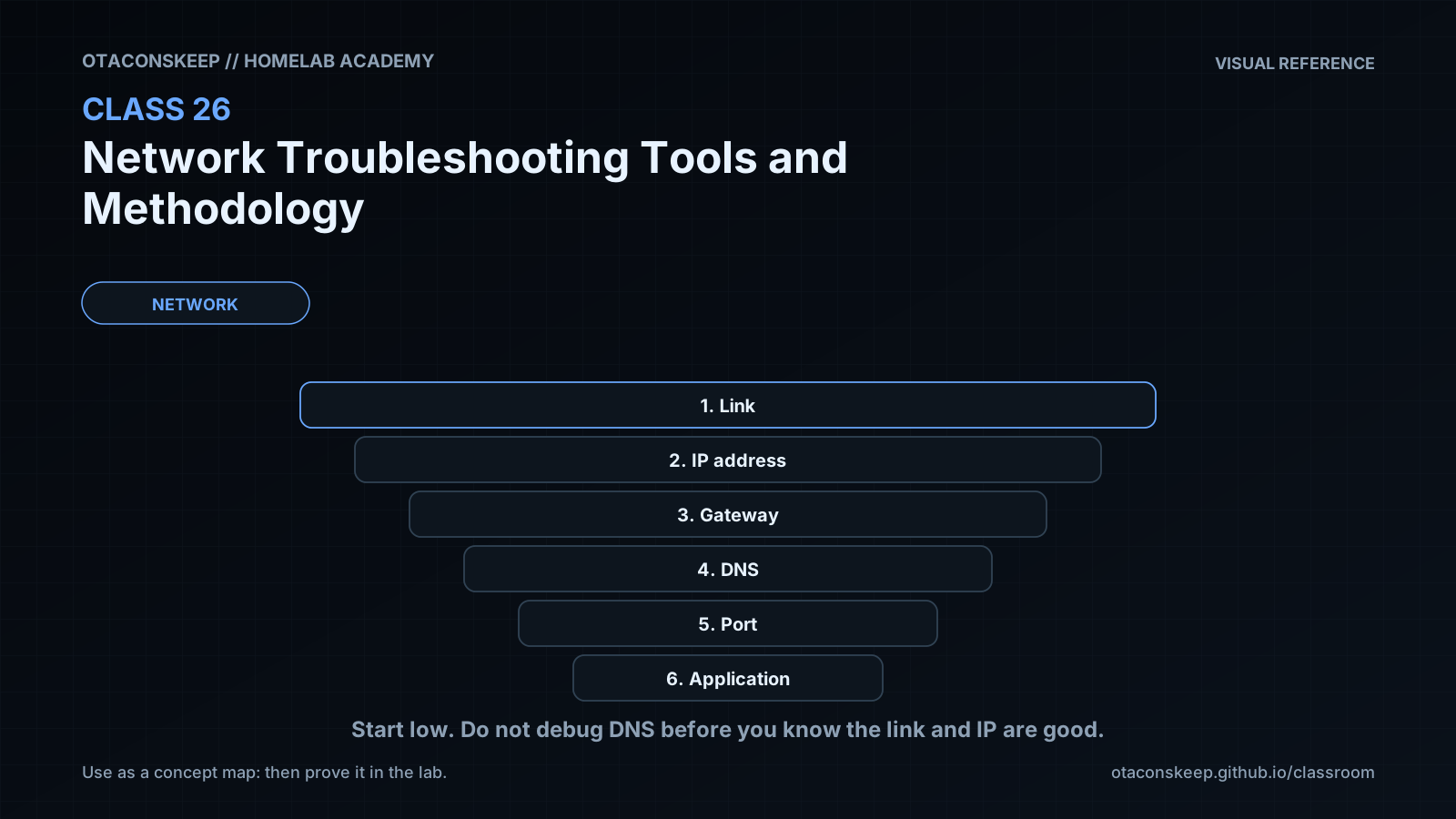
Overview
Module: Network Operations
Activity type: Lab (Practice)
Lab risk: low
Objective: Apply a layered troubleshooting workflow from local state through application response
Before you start
- Comfort using a Linux shell and reading command output
- Basic understanding of IPv4 addresses, TCP, UDP, ports, and DNS
- A Linux host or virtual machine with sudo access
- Python 3, iproute2 utilities, curl, and getent
- Permission to create files under /opt/lab-classroom/class26/
Guided lab
name
Diagnose a Wrong-Port Failure Against a Local HTTP Service
constraints
Do not edit operating-system network configuration.
Do not install packages during the exercise.
Create or modify persistent files only under /opt/lab-classroom/class26/.
Use port 18080 for the controlled service and port 18081 for the deliberate failure.
Run each observation before making any corrective change.
steps
step
1
title
Create the isolated workspace
commands
LAB=/opt/lab-classroom/class26
sudo install -d -m 0755 "$LAB/site"
sudo chown -R "$(id -u):$(id -g)" "$LAB"
printf 'class26-ok\n' > "$LAB/site/health.txt"
observe
Confirm that the health file exists only inside the assigned lab directory.
step
2
title
Start a loopback-only HTTP service
commands
LAB=/opt/lab-classroom/class26
python3 -m http.server 18080 --bind 127.0.0.1 --directory "$LAB/site" > "$LAB/server.log" 2>&1 &
echo "$!" > "$LAB/server.pid"
sleep 1
observe
The background process identifier is stored in server.pid, and service output is stored in server.log.
step
3
title
Establish local addressing and route evidence
commands
ip address show dev lo
ip route get 127.0.0.1
getent ahosts localhost
observe
The loopback interface should be active, the route lookup should select lo, and localhost should resolve to one or more loopback addresses.
step
4
title
Reproduce the deliberate failure
commands
curl --connect-timeout 2 --max-time 4 -v http://127.0.0.1:18081/health.txt
observe
The request should fail because the lab did not create a listener on port 18081. Record the exact curl message and exit status rather than paraphrasing it as a generic network failure.
step
5
title
Inspect transport listeners
commands
ss -lntp '( sport = :18080 or sport = :18081 )'
observe
A listener should appear on 127.0.0.1:18080, while no listener should appear on port 18081. Process details may be partially hidden on some systems, but the local address and port should remain visible.
step
6
title
Test the correct endpoint
commands
curl --connect-timeout 2 --max-time 4 -v http://127.0.0.1:18080/health.txt
printf 'curl_exit=%s\n' "$?"
observe
The client should connect, receive an HTTP success response, print class26-ok, and report curl_exit=0.
step
7
title
Correlate client and server evidence
commands
LAB=/opt/lab-classroom/class26
cat "$LAB/server.log"
cat "$LAB/server.pid"
observe
The log should contain the successful request for /health.txt. The failed request to port 18081 should not appear because it never reached this HTTP process.
step
8
title
Optionally inspect the local path
commands
command -v tracepath >/dev/null 2>&1 && tracepath -n 127.0.0.1 || printf 'tracepath is not installed; optional step skipped\n'
observe
If available, tracepath should show a host-local path rather than an external router.
step
9
title
Write the incident conclusion
commands
LAB=/opt/lab-classroom/class26
printf '%s\n' 'Symptom: HTTP request to 127.0.0.1:18081 failed.' 'Evidence: route selected lo; ss showed a listener only on 127.0.0.1:18080; HTTP on 18080 returned class26-ok.' 'Conclusion: the client used the wrong destination port, not a broken route or failed HTTP service.' > "$LAB/conclusion.txt"
cat "$LAB/conclusion.txt"
observe
The conclusion should connect each claim to collected evidence and should not claim that external networking was tested.
Expected results
- The loopback interface is present and the route lookup for 127.0.0.1 selects the local loopback path.
- localhost resolves to at least one loopback address through the host name-service configuration.
- The request to 127.0.0.1:18081 fails because no lab listener exists on that port.
- ss reports a TCP listener on 127.0.0.1:18080 and no listener on port 18081.
- The request to http://127.0.0.1:18080/health.txt returns the body class26-ok.
- The successful request appears in /opt/lab-classroom/class26/server.log.
- The written conclusion identifies a destination-port mismatch and does not misdiagnose the route or name resolver.
Verification
- [ ] Run
test -f /opt/lab-classroom/class26/site/health.txt && printf 'health file present\n'and confirm the success message. - [ ] Run
ss -lnt '( sport = :18080 )'and confirm that 127.0.0.1:18080 is in the LISTEN state. - [ ] Run
curl --fail --silent --show-error --max-time 4 http://127.0.0.1:18080/health.txtand confirm that the output is exactly class26-ok. - [ ] Run
curl --silent --max-time 2 http://127.0.0.1:18081/health.txt >/dev/null; test "$?" -ne 0and confirm that the shell test succeeds. - [ ] Run
grep -F 'GET /health.txt' /opt/lab-classroom/class26/server.logand confirm that at least one successful request is logged. - [ ] Run
grep -F 'wrong destination port' /opt/lab-classroom/class26/conclusion.txtand confirm that the evidence-based conclusion was recorded.
Break/fix
| Symptom | Likely cause | Fix |
|---|---|---|
| python3 reports that port 18080 is already in use. | Another process is already listening on the selected port, or a previous lab server is still running. | Inspect ss -lntp '( sport = :18080 )'. If the listener is the prior lab process recorded in server.pid, verify its command line and stop it using the controlled procedure. Do not terminate an unidentified service. |
| The request to port 18080 is refused. | The Python server failed to start, exited immediately, or is not bound to the expected address and port. | Read /opt/lab-classroom/class26/server.log, check the PID file, and inspect ss -lntp '( sport = :18080 )'. Correct the startup command only after identifying the failure. |
| The request to port 18080 connects but returns an HTTP 404 response. | The server is reachable, but health.txt is absent from the configured document directory or the requested path is incorrect. | Confirm that /opt/lab-classroom/class26/site/health.txt exists and that the request path is /health.txt. Treat this as an application resource problem, not a routing problem. |
| curl is not found. | The required client package is absent from the lab host. | Stop the exercise and install curl through the platform's approved package-management process outside this lesson, then repeat the lab. Do not substitute unreviewed download-and-execute commands. |
| getent returns IPv6 and IPv4 results in an unexpected order. | The system's host database and address-selection policy prefer one address family over the other. | Record the result as resolver evidence. Continue using the literal IPv4 loopback address for the controlled service test because the server is intentionally bound to 127.0.0.1. |
| ss shows the listener but omits the process name or PID. | The current user lacks permission to view complete process metadata. | Use the visible address, port, and LISTEN state as evidence. Correlate the service with the PID file and server log instead of broadening privileges unnecessarily. |
| The request hangs until the maximum time is reached instead of being refused immediately. | The environment is handling the destination differently than expected, or a local packet-filter policy is silently discarding traffic. | Confirm that the destination is exactly 127.0.0.1, inspect route and listener evidence again, record the timeout as distinct from refusal, and consult the host owner before changing any security policy. |
| server.log remains empty after a successful response. | Output buffering, inspection of the wrong file, or a different process serving the request. | Confirm the server command line associated with the recorded PID, repeat the request, wait briefly, and inspect the exact path /opt/lab-classroom/class26/server.log. |
Security
principles
Use read-only observations before corrective actions.
Bind the training service to 127.0.0.1 so it is not intentionally exposed through non-loopback interfaces.
Use explicit connection and total time limits for client probes.
Probe only systems and ports for which authorization has been granted.
Do not include credentials, session tokens, or sensitive response bodies in shared troubleshooting records.
Verify process identity before sending a termination signal because PID files can become stale.
Avoid changing routing, resolver settings, interface state, or security policy during evidence collection.
data_handling
The lab serves only the text class26-ok. Logs and notes remain under /opt/lab-classroom/class26/ and should not contain secrets.
exposure
The service listens only on the IPv4 loopback address. This design limits direct access to processes on the same host, although local users may still be able to connect.
authorization
Commands demonstrated against loopback must not be redirected toward third-party systems without explicit permission.
Rollback
goal
Stop only the lab-owned Python process and remove only the class 26 workspace.
steps
Set LAB=/opt/lab-classroom/class26.
If $LAB/server.pid exists, read the PID and inspect ps -p "$PID" -o pid=,args=.
Proceed only if the displayed process is the expected Python HTTP server using port 18080 and the class 26 site directory.
Run kill "$PID" and verify that ss -lnt '( sport = :18080 )' no longer shows the lab listener.
Run sudo rm -r -- /opt/lab-classroom/class26/ only after confirming the exact path.
Verify rollback with test ! -e /opt/lab-classroom/class26 && printf 'class26 workspace removed\n'.
persistent_effects
After successful rollback, no lab-created files remain. The lesson does not intentionally change persistent host networking.