Overview
Module: Docker, Storage & Permissions
Activity type: Lab (Practice)
Lab risk: low
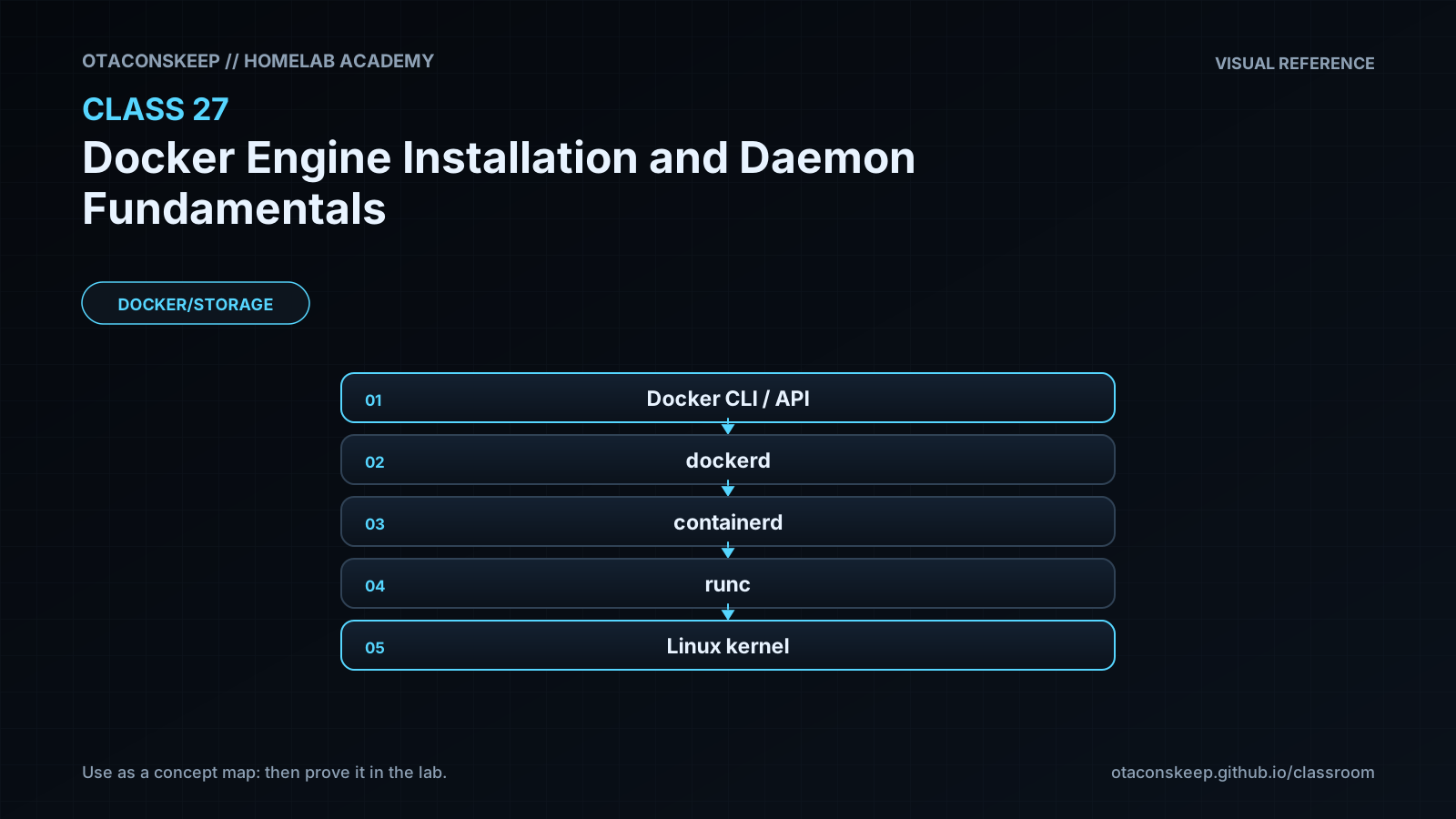
Objective: Explain the responsibilities of the Docker CLI, Docker daemon, containerd, and OCI runtime
Before you start
- Basic Linux command-line navigation
- Familiarity with JSON syntax
- Ability to identify the Linux distribution and CPU architecture
- A Linux host or virtual machine with permission to create files under /opt/lab-classroom/class27/
- Docker Engine is optional; configuration validation steps are skipped when dockerd is unavailable
Guided lab
name
Inventory and Safely Stage a Docker Daemon Configuration
scope_guardrail
Every command that writes data targets /opt/lab-classroom/class27/. Do not install packages, start or stop services, launch dockerd, edit system daemon configuration, or change Docker's active data directory during this lab.
steps
step
1
title
Create the isolated workspace
commands
install -d /opt/lab-classroom/class27/runtime /opt/lab-classroom/class27/docker-data /opt/lab-classroom/class27/docker-exec
explanation
These directories hold all generated class files and staged runtime paths.
step
2
title
Capture a read-only host inventory
commands
{ printf '%s\n' 'Class 27 host inventory'; printf 'Kernel: '; uname -srmo; printf 'Architecture: '; uname -m; printf 'docker CLI: '; command -v docker || printf '%s\n' 'not installed'; printf 'dockerd: '; command -v dockerd || printf '%s\n' 'not installed'; printf 'containerd: '; command -v containerd || printf '%s\n' 'not installed'; } > /opt/lab-classroom/class27/host-inventory.txt
cat /opt/lab-classroom/class27/host-inventory.txt
explanation
The discovery commands read host information, while their output is written only inside the permitted workspace.
step
3
title
Create an installation decision record
commands
printf '%s\n' 'Installation source: official instructions for the detected operating system' 'Repository provenance must be verified before use: yes' 'Target architecture must match host inventory: yes' 'Maintenance window required: yes' 'Package and service changes executed in this lab: no' 'Rollback must be documented before installation: yes' > /opt/lab-classroom/class27/installation-plan.txt
cat /opt/lab-classroom/class27/installation-plan.txt
explanation
The record separates installation planning from execution and prevents an unreviewed system change.
step
4
title
Stage a daemon configuration
commands
printf '%s\n' '{' ' "data-root": "/opt/lab-classroom/class27/docker-data",' ' "exec-root": "/opt/lab-classroom/class27/docker-exec",' ' "pidfile": "/opt/lab-classroom/class27/runtime/docker.pid",' ' "hosts": ["unix:///opt/lab-classroom/class27/runtime/docker.sock"],' ' "log-driver": "local",' ' "log-opts": {' ' "max-size": "10m",' ' "max-file": "3"' ' },' ' "live-restore": true' '}' > /opt/lab-classroom/class27/daemon.json
cat /opt/lab-classroom/class27/daemon.json
explanation
This inactive configuration demonstrates persistent daemon options. Every filesystem path remains under the class workspace.
step
5
title
Validate JSON syntax
commands
if command -v jq >/dev/null 2>&1; then jq empty /opt/lab-classroom/class27/daemon.json && printf '%s\n' 'JSON syntax: valid'; elif command -v python3 >/dev/null 2>&1; then python3 -m json.tool /opt/lab-classroom/class27/daemon.json >/dev/null && printf '%s\n' 'JSON syntax: valid'; else printf '%s\n' 'SKIP: neither jq nor python3 is available'; fi
explanation
JSON parsing detects commas, quotation, braces, and structural errors before daemon-specific validation.
step
6
title
Perform daemon-specific validation when supported
commands
if command -v dockerd >/dev/null 2>&1; then dockerd --validate --config-file /opt/lab-classroom/class27/daemon.json; else printf '%s\n' 'SKIP: dockerd is not installed'; fi
explanation
The validation mode reads the staged file but does not start a daemon. If the installed release does not support a directive or validation mode, record the exact error instead of launching dockerd.
step
7
title
Confirm the lab boundary
commands
find /opt/lab-classroom/class27/ -maxdepth 2 -printf '%y %p\n' | sort
explanation
The listing provides an auditable view of the workspace created by the lab.
Expected results
- The directory /opt/lab-classroom/class27/ exists with runtime, docker-data, and docker-exec subdirectories.
- host-inventory.txt identifies the kernel, architecture, and whether docker, dockerd, and containerd are present.
- installation-plan.txt records that package and service changes were not performed during the lab.
- daemon.json parses as valid JSON when jq or Python 3 is available.
- Daemon-specific validation succeeds when the installed dockerd version supports all staged directives, or the step reports a clear skip or compatibility error.
- No Docker daemon is started and no active system daemon configuration is changed.
Verification
- [ ] Run: test -d /opt/lab-classroom/class27/runtime && test -d /opt/lab-classroom/class27/docker-data && test -d /opt/lab-classroom/class27/docker-exec && echo PASS
- [ ] Run: test -s /opt/lab-classroom/class27/host-inventory.txt && echo PASS
- [ ] Run: test -s /opt/lab-classroom/class27/installation-plan.txt && echo PASS
- [ ] Run: grep -F 'Package and service changes executed in this lab: no' /opt/lab-classroom/class27/installation-plan.txt
- [ ] Run: grep -F '"data-root": "/opt/lab-classroom/class27/docker-data"' /opt/lab-classroom/class27/daemon.json
- [ ] Run: grep -F '"log-driver": "local"' /opt/lab-classroom/class27/daemon.json
- [ ] Run: if command -v jq >/dev/null 2>&1; then jq -e '.hosts[0] == "unix:///opt/lab-classroom/class27/runtime/docker.sock" and .["log-opts"]["max-file"] == "3"' /opt/lab-classroom/class27/daemon.json; else python3 -m json.tool /opt/lab-classroom/class27/daemon.json >/dev/null; fi
- [ ] Confirm that no lab instruction installed packages, modified a system service, or started dockerd.
Break/fix
| Symptom | Likely cause | Fix |
|---|---|---|
| Creating /opt/lab-classroom/class27/ fails with permission denied. | The current user does not have permission to create directories under /opt/lab-classroom. | Have an administrator pre-create /opt/lab-classroom/class27/ and assign appropriate ownership for the learner. Do not redirect the lab to unrelated system paths. |
| The JSON parser reports an error. | A quote, comma, brace, or value was changed while creating daemon.json. | Compare the file with the staged configuration in the lab, correct only /opt/lab-classroom/class27/daemon.json, and rerun syntax validation. |
| dockerd reports that --validate is unknown. | The installed Docker daemon is older or packaged without the expected validation behavior. | Record the installed version, retain the successful generic JSON validation, and consult the documentation matching that exact release. Do not start a second daemon as a substitute. |
| dockerd validation reports a duplicated hosts option. | The active service definition may already pass a hosts argument, and the daemon rejects settings supplied through both startup arguments and configuration. | For a future approved deployment, choose one authoritative location for the hosts setting and test the change in a maintenance window. Do not alter the active service during this lab. |
| The Docker CLI exists but reports that it cannot connect to the daemon. | The daemon may be absent, stopped, using a different context or socket, or inaccessible to the user. | Inspect the selected Docker context, expected endpoint, daemon service status, and user authorization. Do not assume that reinstalling the client will repair a daemon connectivity problem. |
| Docker commands return permission denied for the API socket. | The current user is not authorized to access the rootful daemon socket. | Use the organization's approved administrative workflow. Treat daemon access as privileged and do not broaden socket permissions as a shortcut. |
| A real daemon fails after a configuration change. | The file may contain unsupported settings, conflicting startup arguments, inaccessible paths, or storage configuration incompatible with the host. | Review the earliest daemon log error, restore the last known-good configuration using the prepared rollback procedure, validate it, and then restart only within the approved change window. |
| Images or containers appear missing after changing data-root. | The daemon is reading a different storage location rather than the original Docker state. | Stop further changes, identify the previous data root, and follow a tested migration or rollback plan. Do not copy active Docker state while the daemon is writing to it. |
Security
principles
Treat control of a rootful Docker daemon as administrative control of the host.
Grant local daemon access only to identities that are authorized for host-level administration.
Do not expose an unauthenticated or unencrypted daemon API to a network.
Verify repository provenance, signing configuration, operating-system support, and package architecture before installation.
Pin or otherwise control versions when reproducible deployments are required.
Use bounded logging and monitor both the Docker data filesystem and the host log filesystem.
Prefer minimal container privileges, read-only filesystems where practical, explicit mounts, and narrowly scoped capabilities.
Review third-party images, use trusted registries, and track image digests or approved tags according to policy.
Keep secrets out of daemon configuration, image layers, command history, and ordinary environment files.
Back up application data according to the storage system's consistency requirements; image caches are not substitutes for backups.
socket_warning
Possession of the Docker API socket can allow an operator or process to create highly privileged containers, mount host filesystems, and control workloads. Filesystem permissions around the socket are a security boundary, not a convenience setting.
rootless_note
Rootless mode can reduce exposure to a privileged system daemon, but it does not eliminate container security risks and may have networking, storage, resource-management, or port-binding differences.
Rollback
lab_rollback
Remove only the class workspace through the classroom's approved cleanup process. The lab does not provide a destructive cleanup command because preserving the files may be useful for review and no system configuration was changed.
real_installation_rollback_plan
Record current package versions, service state, active daemon configuration, Docker data root, and storage driver before making changes.
Back up configuration files and application data using methods appropriate to the workload.
Keep the previously approved package version available when organizational policy and repository retention permit.
If a new daemon configuration prevents startup, restore the last known-good configuration, validate it, and restart the service in the maintenance window.
Do not delete the Docker data root as an uninstall shortcut; it may contain persistent application volumes and other required state.
Verify daemon health, expected containers, networks, volumes, logs, and application functionality after rollback.
success_criteria
Rollback is complete only when the intended daemon version and configuration are restored, the daemon is healthy, expected workloads and persistent data are available, and monitoring shows no continuing storage or connectivity errors.