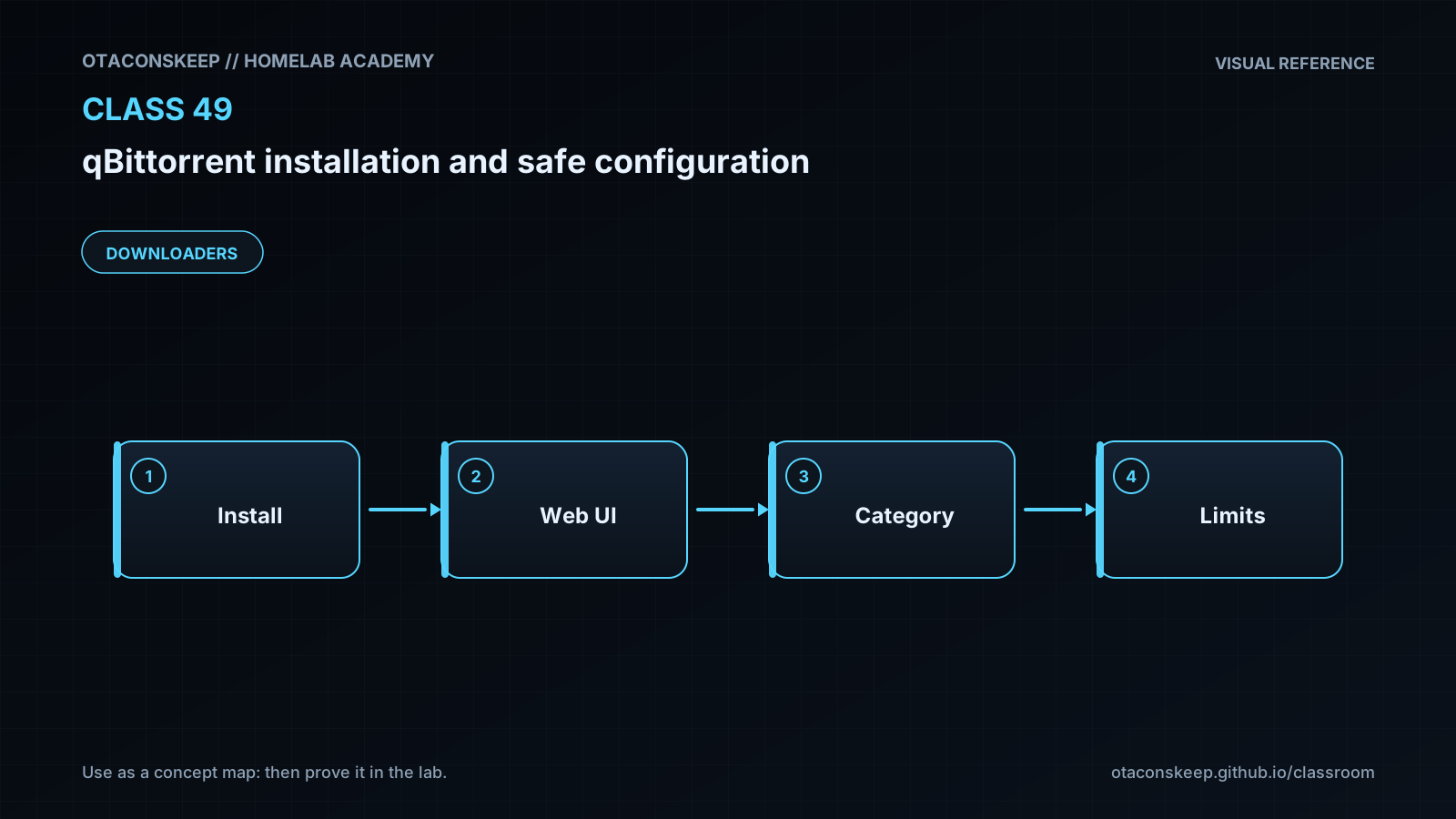
Overview
Module: Download Clients & Indexers
Activity type: Lab (Practice)
Lab risk: medium
Objective: Explain the separation between the qBittorrent process, Web UI, peer protocol, configuration, and download storage.
Before you start
- A Linux host with rootless Podman already installed and working.
- A user account permitted to run Podman without elevated privileges.
- At least 2 GB of free space under /opt/lab-classroom/class49/ for container storage, configuration, and test data.
- Basic familiarity with Linux paths, TCP ports, containers, and browser-based administration.
- Permission to download the selected container image and to use BitTorrent only for lawful, authorized content.
- Ports 8080 and 6881 must not already be occupied on the host loopback interface.
Guided lab
scope_rule
Every persistent file created by this lab must remain beneath /opt/lab-classroom/class49/. Run the commands as the same unprivileged user in one shell. Do not substitute a system-wide Podman storage location.
steps
step
1
title
Create private lab directories
commands
umask 077
LAB=/opt/lab-classroom/class49
install -d -m 700 "$LAB" "$LAB/home" "$LAB/runtime" "$LAB/tmp" "$LAB/storage" "$LAB/runroot" "$LAB/config" "$LAB/downloads" "$LAB/downloads/complete" "$LAB/downloads/incomplete"
notes
The parent /opt/lab-classroom directory must already permit the current user to create class49. Do not change permissions outside the class49 directory as part of this lab.
step
2
title
Create a lab-scoped Podman environment
commands
cat > "$LAB/env.sh" <<'EOF'
LAB=/opt/lab-classroom/class49
export LAB
export HOME="$LAB/home"
export XDG_CONFIG_HOME="$LAB/home/.config"
export XDG_DATA_HOME="$LAB/home/.local/share"
export XDG_CACHE_HOME="$LAB/home/.cache"
export XDG_RUNTIME_DIR="$LAB/runtime"
export TMPDIR="$LAB/tmp"
p49podman() {
command podman --root "$LAB/storage" --runroot "$LAB/runroot" --tmpdir "$LAB/tmp" --events-backend=file "$@"
}
EOF
. "$LAB/env.sh"
install -d -m 700 "$XDG_CONFIG_HOME" "$XDG_DATA_HOME" "$XDG_CACHE_HOME"
notes
Source env.sh before every later p49podman command if a new shell is opened. The wrapper redirects Podman's persistent and temporary state into the class directory.
step
3
title
Pull and identify the container image
commands
. /opt/lab-classroom/class49/env.sh
p49podman pull lscr.io/linuxserver/qbittorrent:latest
p49podman image inspect lscr.io/linuxserver/qbittorrent:latest --format '{{json .RepoDigests}}' | tee "$LAB/image-digests.json"
notes
The latest tag can change. The recorded repository digest identifies what was retrieved for this exercise. For a long-lived deployment, review updates and pin an approved digest rather than silently following a moving tag.
step
4
title
Start qBittorrent with constrained host bindings
commands
. /opt/lab-classroom/class49/env.sh
p49podman run --detach --name class49-qbittorrent --userns=keep-id --user "$(id -u):$(id -g)" --cap-drop=ALL --security-opt=no-new-privileges --env HOME=/config --env XDG_CONFIG_HOME=/config --publish 127.0.0.1:8080:8080/tcp --publish 127.0.0.1:6881:6881/tcp --publish 127.0.0.1:6881:6881/udp --volume "$LAB/config:/config:rw" --volume "$LAB/downloads:/downloads:rw" --entrypoint /usr/bin/qbittorrent-nox lscr.io/linuxserver/qbittorrent:latest --webui-port=8080
p49podman ps --filter name=class49-qbittorrent
p49podman logs class49-qbittorrent | tee "$LAB/initial-container.log"
notes
Read the startup log for the temporary Web UI password. Treat the log as sensitive because it may contain that credential. The application runs as the current host user's numeric identity rather than through the image's normal service supervisor.
step
5
title
Complete the initial Web UI configuration
commands
notes
Open http://127.0.0.1:8080 in a browser on the Podman host. Sign in with username admin and the temporary password shown in the container log. Immediately set a unique password in Tools, Options, Web UI. Keep authentication enabled. Keep host-header validation, cross-site request forgery protection, and clickjacking protection enabled. Do not configure an alternate unauthenticated subnet. Set the default save path to /downloads/complete and the incomplete path to /downloads/incomplete.
step
6
title
Apply conservative application settings
commands
notes
In qBittorrent options, disable UPnP/NAT-PMP port forwarding unless it is explicitly required and reviewed. Ensure no external program is configured to run when a torrent is added or completed. Disable the search feature and RSS feature if they are not needed. Configure sensible global upload and download limits for the host and network. Configure a seeding ratio or time limit that matches the authorization and policy for the content. Do not interpret protocol encryption or anonymous mode as an anonymity guarantee.
step
7
title
Restart and verify persistence
commands
. /opt/lab-classroom/class49/env.sh
p49podman restart class49-qbittorrent
p49podman ps --filter name=class49-qbittorrent
p49podman logs --tail 50 class49-qbittorrent
find "$LAB/config" -maxdepth 4 -type f -print
find "$LAB/downloads" -maxdepth 2 -type d -print
notes
Confirm that the changed password still works after restart and that the selected download paths remain configured.
step
8
title
Perform an authorized functional test
commands
notes
Optionally add only a clearly authorized torrent, such as a torrent published by a Linux distribution for its own installation image. Confirm that incomplete and completed files appear only beneath the mapped /downloads paths. Remove the test task through the Web UI when finished. Do not delete its payload unless deletion is intentional.
Expected results
- Podman image, runtime, event, configuration, and download state created by the lab resides beneath /opt/lab-classroom/class49/.
- The class49-qbittorrent container remains in a running state after initial startup and restart.
- The Web UI responds at http://127.0.0.1:8080 and requires authentication.
- The initial temporary password is replaced by a unique administrator-selected password.
- Host port 8080 is bound to 127.0.0.1 rather than to every host interface.
- Host TCP and UDP port 6881 are initially bound to 127.0.0.1, preventing direct LAN-originated inbound peer connections.
- qBittorrent configuration persists beneath /opt/lab-classroom/class49/config/ after the container is restarted or recreated.
- Completed and incomplete download locations map to separate directories beneath /opt/lab-classroom/class49/downloads/.
- Automatic external program execution and unnecessary automatic gateway port mapping are disabled.
- The exact repository digest returned during the image pull is recorded in /opt/lab-classroom/class49/image-digests.json.
Verification
- [ ] Run
. /opt/lab-classroom/class49/env.sh; p49podman ps --filter name=class49-qbittorrentand confirm the container status is Up. - [ ] Run
. /opt/lab-classroom/class49/env.sh; p49podman port class49-qbittorrentand confirm the host-side addresses begin with 127.0.0.1. - [ ] Run
ss -lnt | grep ':8080 'and verify the listening address is 127.0.0.1 rather than 0.0.0.0 or an externally reachable host address. - [ ] Run
ss -lntu | grep ':6881 'and verify the initial TCP and UDP peer publications are limited to 127.0.0.1. - [ ] Open http://127.0.0.1:8080 and verify that the old temporary password no longer authenticates after the password change.
- [ ] Restart the container, sign in using the new password, and verify that the download directories and security settings persisted.
- [ ] Run
find /opt/lab-classroom/class49/config -maxdepth 4 -type f -printand confirm qBittorrent created configuration files under the designated configuration directory. - [ ] Run
. /opt/lab-classroom/class49/env.sh; p49podman inspect class49-qbittorrent --format '{{json .Mounts}}'and confirm only the intended config and downloads bind mounts are present. - [ ] Run
. /opt/lab-classroom/class49/env.sh; p49podman inspect class49-qbittorrent --format '{{.HostConfig.Privileged}}'and confirm the result is false. - [ ] Inspect /opt/lab-classroom/class49/image-digests.json and confirm it contains the retrieved image's repository digest.
Break/fix
| Symptom | Likely cause | Fix |
|---|---|---|
| The class49 directory cannot be created. | The current user does not have permission to create directories beneath /opt/lab-classroom. | Have the lab administrator pre-create /opt/lab-classroom/class49 with ownership assigned to the lab user. Do not broaden permissions on unrelated directories. |
| The p49podman command is not found. | The lab environment file was not sourced in the current shell. | Run . /opt/lab-classroom/class49/env.sh and then retry the p49podman command. |
| Rootless Podman reports a user-namespace or subordinate-ID error. | Rootless Podman was not fully configured for the account, or the installed Podman version does not support the requested user-namespace behavior. | Stop the lab and have the host administrator correct the account's rootless Podman configuration. Do not switch the exercise to an unrestricted privileged container. |
| The container exits immediately and the log says /usr/bin/qbittorrent-nox does not exist. | The image layout changed after the lesson was reviewed. | Inspect the image documentation and image metadata, confirm the reviewed qBittorrent executable path, and update the entrypoint only after validating the image source and version. |
| The container reports that /config or /downloads is not writable. | The directories are not owned or writable by the user running rootless Podman, or files were previously created under a different identity. | Stop the container, inspect ownership beneath the class49 directory, and have the lab administrator restore ownership only within /opt/lab-classroom/class49/. Do not grant universal write access. |
| Port publication fails with an address-already-in-use message. | Another process is already listening on host port 8080 or 6881. | Identify the existing listener with ss -lntu, then either stop the conflicting lab service or choose an unused host port while retaining the 127.0.0.1 binding. |
| The Web UI does not load even though the container is running. | qBittorrent is still starting, the application exited after container creation, or the browser is not running on the same host. | Review p49podman logs class49-qbittorrent, verify the port mapping, and access 127.0.0.1 from the Podman host. Use a separately designed authenticated tunnel if remote administration is required. |
| No temporary password is visible in the current terminal. | The startup message scrolled out of view, the log was not queried, or the installed qBittorrent version uses different first-run behavior. | Run . /opt/lab-classroom/class49/env.sh; p49podman logs class49-qbittorrent and consult the qBittorrent Web UI documentation for the installed version. Do not guess or publish credentials. |
| A torrent can connect outbound but receives few or no inbound connections. | The peer port is intentionally bound to host loopback for the initial safe deployment. | Treat this as expected lab behavior. Design and review an explicit inbound peer-port exposure separately before changing the host binding. |
| Settings disappear after the container is recreated. | The configuration path was changed, the /config bind mount was omitted, or the container ran with a different application home. | Recreate the container with HOME and XDG_CONFIG_HOME set to /config and with /opt/lab-classroom/class49/config mounted at /config. |
Security
controls
Run Podman rootlessly and run qBittorrent as the invoking user's numeric identity.
Drop all container capabilities and apply the no-new-privileges security option.
Publish the Web UI only on 127.0.0.1.
Publish the initial peer listener only on 127.0.0.1.
Replace the temporary Web UI password immediately with a unique password.
Retain Web UI authentication, host-header validation, cross-site request forgery protection, and clickjacking protection.
Disable automatic gateway port mapping unless a documented network requirement exists.
Do not enable external completion commands or add unreviewed search plugins.
Record and review the retrieved image digest before treating the installation as reproducible.
Back up configuration independently and treat downloaded content as untrusted.
warnings
BitTorrent participation can reveal a peer's network address to trackers and other peers.
Protocol encryption does not provide anonymity.
A container is an isolation boundary, not a guarantee that malicious content cannot affect the host or user.
Exposing the Web UI beyond loopback without transport protection and carefully designed authentication can reveal credentials and administrative traffic.
Binding qBittorrent to a VPN interface is only useful when the binding and loss-of-VPN behavior have been tested.
Only download or distribute content for which you have authorization.
credential_handling
The initial container log may contain a temporary administrator password. Keep /opt/lab-classroom/class49/initial-container.log private, change the password immediately, and remove or securely archive the log according to local policy after it is no longer needed.
remote_access_guidance
Do not change the Web UI publication to 0.0.0.0 merely for convenience. A remote-management design should use an authenticated, encrypted access path and should preserve qBittorrent's Web UI security checks.
Rollback
preserve_data_procedure
Source the environment with . /opt/lab-classroom/class49/env.sh.
Stop the application with p49podman stop class49-qbittorrent.
If recreation is required, remove only the container object with p49podman rm --force class49-qbittorrent.
Leave /opt/lab-classroom/class49/config/ and /opt/lab-classroom/class49/downloads/ intact.
Re-run the reviewed container creation command to restore service using the retained bind-mounted data.
configuration_rollback
Before making later configuration changes, stop the container and copy the relevant configuration file to a timestamped backup beneath /opt/lab-classroom/class49/config-backups/. Restore only while qBittorrent is stopped so the application does not overwrite the restored file.
full_cleanup_policy
This lesson does not perform irreversible recursive deletion. After the container is stopped and removed, an administrator may archive or remove /opt/lab-classroom/class49/ under the site's data-retention procedure after verifying that no required downloads, configuration, credentials, or image records remain.