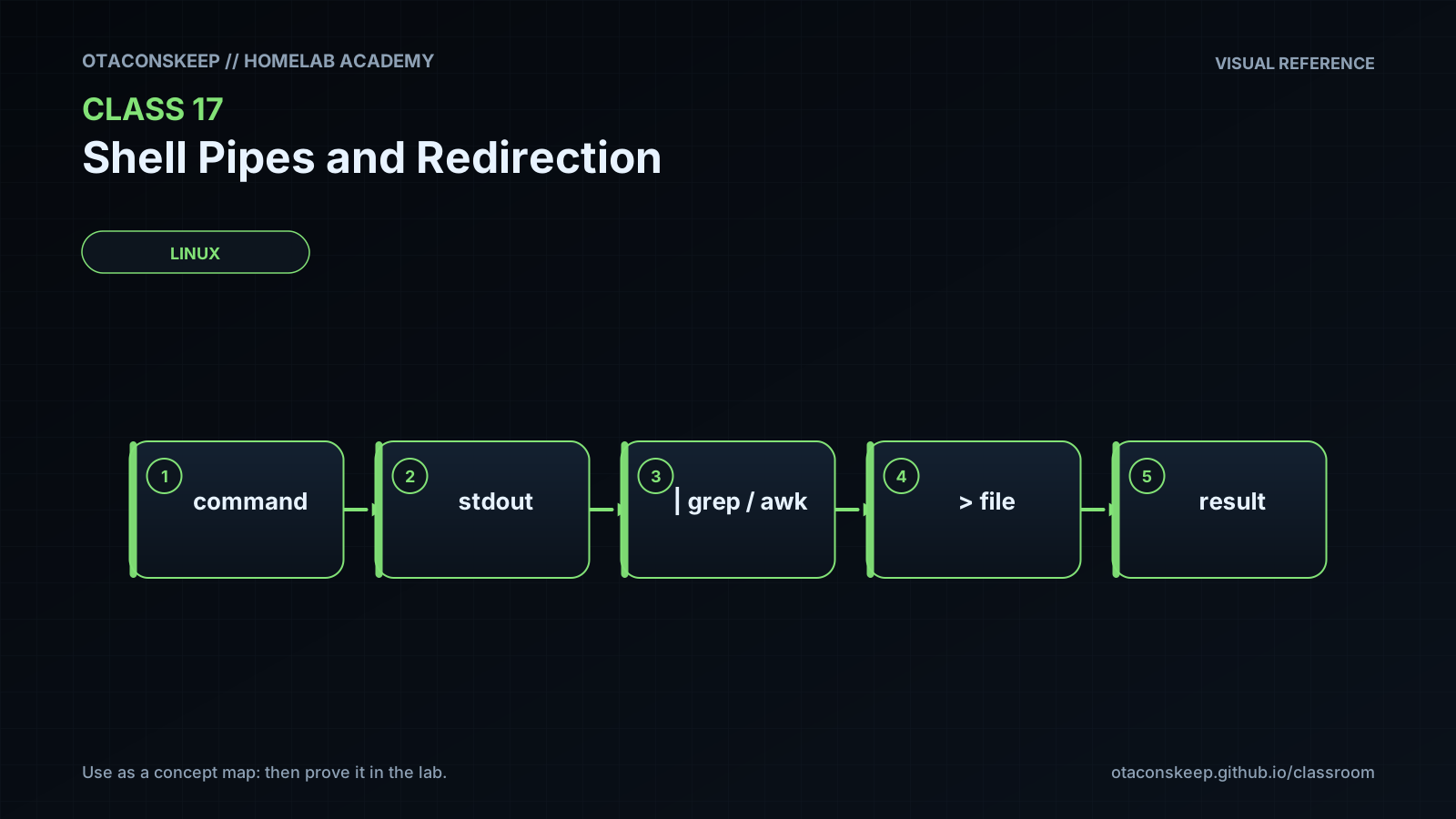
Overview
Module: Linux Foundations
Activity type: Lab (Practice)
Lab risk: low
Objective: Identify file descriptors 0, 1, and 2 as standard input, standard output, and standard error
Before you start
- Ability to open a terminal and run basic Linux commands
- Familiarity with paths, files, directories, and command arguments
- Basic use of cat, grep, sort, and wc
- Permission to create and manage /opt/lab-classroom/class17/
Guided lab
name
Build and inspect a service-report pipeline
scope_rule
Every file created, replaced, or appended by this lab must be under /opt/lab-classroom/class17/.
setup
Create the laboratory directory with: sudo install -d -o "$(id -un)" -g "$(id -gn)" -m 0750 /opt/lab-classroom/class17
Enter it with: cd /opt/lab-classroom/class17
Create the source data with: printf 'dns,active,53\nweb,active,443\nbackup,inactive,0\nmetrics,active,9100\nweb,active,80\n' > services.csv
Inspect the source with: cat services.csv
steps
step
1
description
Redirect a file into standard input and save the resulting count.
command
wc -l < /opt/lab-classroom/class17/services.csv > /opt/lab-classroom/class17/service-line-count.txt
step
2
description
Use a pipeline to extract active service names, sort them, and count duplicates.
command
awk -F, '$2 == "active" { print $1 }' /opt/lab-classroom/class17/services.csv | LC_ALL=C sort | uniq -c > /opt/lab-classroom/class17/active-name-counts.txt
step
3
description
Use tee to save active service records while also passing them to wc.
command
awk -F, '$2 == "active" { print }' /opt/lab-classroom/class17/services.csv | tee /opt/lab-classroom/class17/active-services.csv | wc -l > /opt/lab-classroom/class17/active-count.txt
step
4
description
Create a log and append a second event without replacing the first.
command
printf 'pipeline-started\n' > /opt/lab-classroom/class17/events.log; printf 'pipeline-finished\n' >> /opt/lab-classroom/class17/events.log
step
5
description
Capture a deliberate read error separately from standard output and record the failing exit status.
command
cat /opt/lab-classroom/class17/does-not-exist.txt > /opt/lab-classroom/class17/read-output.log 2> /opt/lab-classroom/class17/read-error.log || printf 'cat_exit=%s\n' "$?" > /opt/lab-classroom/class17/read-status.txt
step
6
description
Generate stdout and stderr in one command group, then save them in separate files.
command
{ printf 'normal-message\n'; printf 'diagnostic-message\n' >&2; } > /opt/lab-classroom/class17/stdout-only.log 2> /opt/lab-classroom/class17/stderr-only.log
step
7
description
Generate both streams again and combine them using left-to-right redirection.
command
{ printf 'stdout-message\n'; printf 'stderr-message\n' >&2; } > /opt/lab-classroom/class17/combined.log 2>&1
step
8
description
Produce a count grouped by service state.
command
awk -F, '{ print $2 }' /opt/lab-classroom/class17/services.csv | LC_ALL=C sort | uniq -c > /opt/lab-classroom/class17/state-counts.txt
step
9
description
Inspect all generated regular files without modifying them.
command
find /opt/lab-classroom/class17 -maxdepth 1 -type f -printf '%f\n' | LC_ALL=C sort
Expected results
- services.csv contains five comma-separated service records.
- service-line-count.txt contains the number 5 without a filename.
- active-name-counts.txt reports one dns record, one metrics record, and two web records.
- active-services.csv contains four records whose state field is active.
- active-count.txt contains the number 4.
- events.log contains pipeline-started followed by pipeline-finished.
- read-output.log is empty because the deliberate cat operation produced no standard output.
- read-error.log is nonempty and contains the diagnostic from the failed cat operation.
- read-status.txt begins with cat_exit= and records a nonzero status.
- stdout-only.log contains normal-message, while stderr-only.log contains diagnostic-message.
- combined.log contains both stdout-message and stderr-message.
- state-counts.txt reports four active records and one inactive record.
Verification
- [ ] Run: test "$(cat /opt/lab-classroom/class17/service-line-count.txt)" = "5" && printf 'PASS: source line count\n'
- [ ] Run: test "$(cat /opt/lab-classroom/class17/active-count.txt)" = "4" && printf 'PASS: active count\n'
- [ ] Run: awk '$2 == "dns" && $1 == 1 { dns=1 } $2 == "metrics" && $1 == 1 { metrics=1 } $2 == "web" && $1 == 2 { web=1 } END { exit !(dns && metrics && web) }' /opt/lab-classroom/class17/active-name-counts.txt && printf 'PASS: active names\n'
- [ ] Run: awk -F, 'NF != 3 || $2 != "active" { bad=1 } END { exit bad }' /opt/lab-classroom/class17/active-services.csv && printf 'PASS: active records\n'
- [ ] Run: test "$(sed -n '1p' /opt/lab-classroom/class17/events.log)" = "pipeline-started" && test "$(sed -n '2p' /opt/lab-classroom/class17/events.log)" = "pipeline-finished" && printf 'PASS: append behavior\n'
- [ ] Run: test ! -s /opt/lab-classroom/class17/read-output.log && test -s /opt/lab-classroom/class17/read-error.log && grep -Eq '^cat_exit=[1-9][0-9]*$' /opt/lab-classroom/class17/read-status.txt && printf 'PASS: separated error stream\n'
- [ ] Run: grep -Fxq 'normal-message' /opt/lab-classroom/class17/stdout-only.log && grep -Fxq 'diagnostic-message' /opt/lab-classroom/class17/stderr-only.log && printf 'PASS: separate streams\n'
- [ ] Run: test "$(wc -l < /opt/lab-classroom/class17/combined.log)" = "2" && grep -Fxq 'stdout-message' /opt/lab-classroom/class17/combined.log && grep -Fxq 'stderr-message' /opt/lab-classroom/class17/combined.log && printf 'PASS: combined streams\n'
- [ ] Run: awk '$2 == "active" && $1 == 4 { active=1 } $2 == "inactive" && $1 == 1 { inactive=1 } END { exit !(active && inactive) }' /opt/lab-classroom/class17/state-counts.txt && printf 'PASS: state counts\n'
Break/fix
| Symptom | Likely cause | Fix |
|---|---|---|
| Creating the laboratory directory reports permission denied. | The current account cannot create directories beneath /opt without elevation. | Run only the provided sudo install command for /opt/lab-classroom/class17, then confirm that the resulting directory is owned by the current user. |
| The awk command produces no active records. | The field separator was omitted, the input file was mistyped, or shell quoting changed the awk program. | Use -F, exactly as shown, keep the awk program inside single quotes, and verify the contents of services.csv with cat. |
| active-name-counts.txt contains unexpected duplicate lines. | uniq received unsorted input because the sort stage was omitted or placed after uniq. | Use the sequence producer |
| An error message appears on the terminal even though stdout was redirected. | Only file descriptor 1 was redirected; file descriptor 2 still points to the terminal. | Add a separate 2> destination or combine the streams with > destination 2>&1. |
| A combined-output command still leaves diagnostics on the terminal. | The redirections were written in the reverse order, causing stderr to retain the shell's previous stdout destination. | Place the stdout redirection first and then duplicate it with 2>&1. |
| A pipeline appears successful even though an early command failed. | The shell returned the exit status of the final pipeline command. | In Bash scripts where every stage matters, enable pipefail with set -o pipefail and test the resulting status. |
| A verification command prints nothing. | The condition failed, a generated file is missing, or the shell did not reach the success-side printf after &&. | Run the tests on each file separately, inspect the file with cat, and compare its content with the expected results. |
| A file unexpectedly lost its previous contents. | The > operator truncated the file before writing. | Use >> only when appending is intended, enable noclobber during interactive work when appropriate, and verify the destination path before pressing Enter. |
Security
principles
Treat every redirection destination as a write operation and verify its complete path before execution.
Keep untrusted data out of shell code. Pipe data as data rather than constructing commands from it.
Do not record credentials, tokens, private keys, or other secrets with tee or diagnostic redirections.
Quote variable expansions used as filenames so whitespace and wildcard characters are not reinterpreted by the shell.
Be cautious when elevated commands write through paths controlled by another user because symbolic links can redirect writes to unintended destinations.
Remember that the shell opens redirection targets before launching the command; privilege boundaries therefore depend on which process performs the open operation.
Use restrictive permissions for logs that could contain hostnames, usernames, internal addresses, or command diagnostics.
Use pipefail in Bash automation when the success of every pipeline stage is required.
lab_boundary
All persistent writes in this lesson are confined to /opt/lab-classroom/class17/.
Rollback
precheck
Review the files before removal with: find /opt/lab-classroom/class17 -maxdepth 1 -type f -printf '%f\n' | LC_ALL=C sort
remove_files
Run: find /opt/lab-classroom/class17 -maxdepth 1 -type f -delete
remove_directory
After confirming the directory is empty, run: rmdir /opt/lab-classroom/class17
verification
Run: test ! -e /opt/lab-classroom/class17 && printf 'Rollback complete\n'