Overview
Module: Module 8: Docker, Storage & Permissions
Topic: 05: Linux Disks, Partitions, and Filesystems
Activity type: Reading / reference (Learn)
Source: Class 31 intake, published without rewriting lesson content
Why this matters
Storage commands often succeed immediately and destroy evidence just as quickly. Confusing a disk with a partition, a filesystem with a mountpoint, or free space with disk health can erase data or hide the real problem. A homelab operator must identify the exact layer before changing it.
Core reading
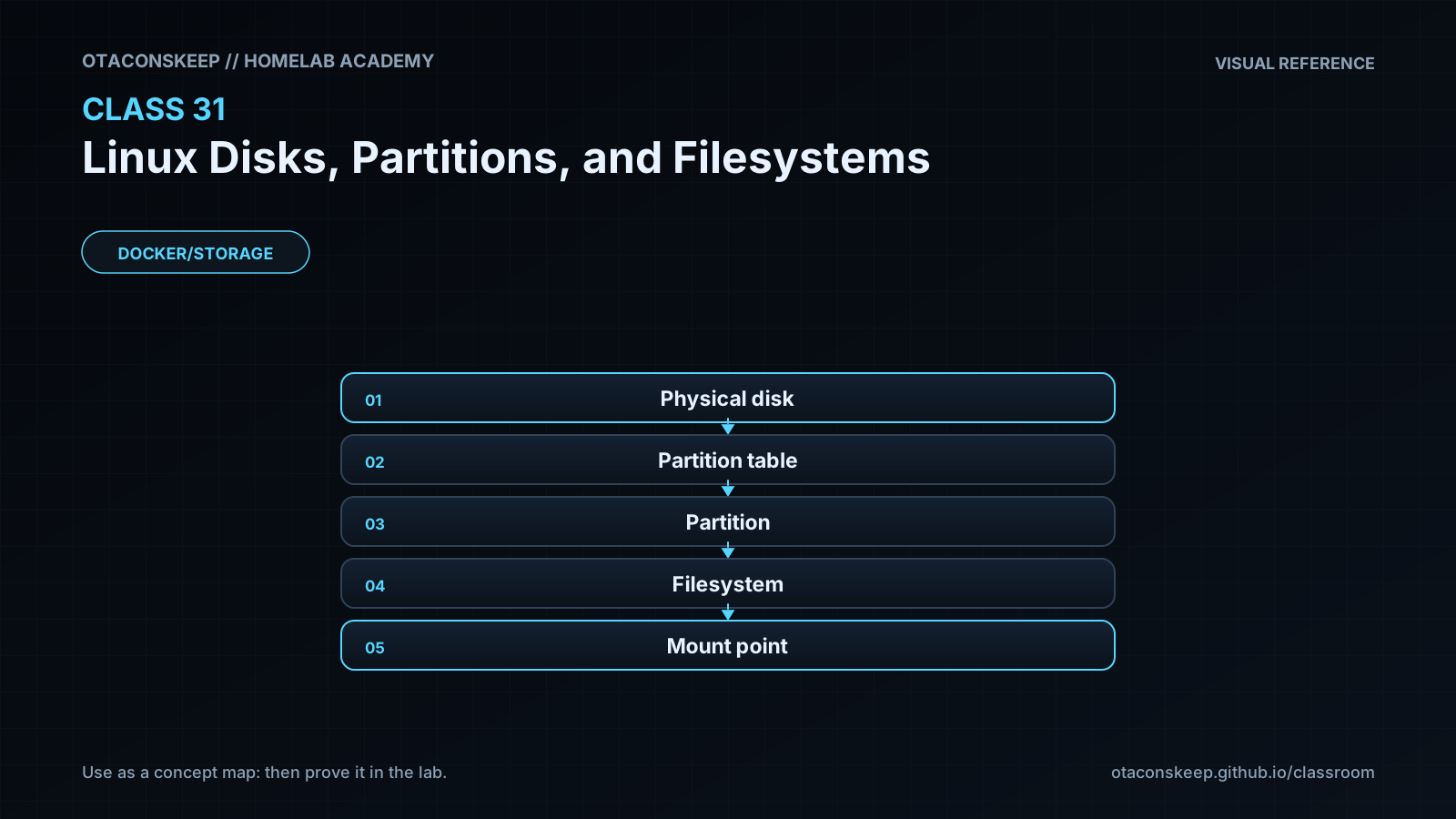
A disk is the underlying block device. A partition table describes subdivisions. A partition is a block-device region. A filesystem organizes files and metadata inside a block device or image. A mount attaches a filesystem to the directory tree. Linux can also use LVM, RAID, encryption, network filesystems, and datasets, so not every stack is simply disk → partition → filesystem.
Use evidence by layer:
lsblk: block topology, sizes, filesystem hints, and mountpoints.blkid: filesystem type, label, and UUID signatures.findmnt: active mount relationships and options.df: allocated/available filesystem space.du: space attributable to visible directory entries.- SMART/NVMe tools: device health indicators; separate from filesystem capacity.
Formatting creates filesystem structures and normally overwrites existing signatures. Partitioning changes the device map. Both require verified targets, backups, maintenance windows, and rollback/recovery planning. Never choose a target only because it “looks like the new disk.” Record model, serial, size, transport, existing signatures, and mounts.
The lab uses a regular sparse file, not a block device. mkfs.ext4 -F is intentionally destructive to that one file, so the command verifies the target is a regular file inside the class directory first.
Worked example (study this)
df reports 95% usage under /srv/media. The underlying disk may be healthy, failing, thin-provisioned, or part of a larger stack; df alone cannot tell. Start with findmnt to identify the source, lsblk for topology, and the device/storage platform's health evidence before planning capacity work.
Visual 1: Storage Stack
```mermaid
flowchart TD
D[Disk / virtual block device] --> P[Partition or volume]
P --> F[Filesystem]
F --> M[Mounted directory]
M --> A[Application data]
```
Visual 2: Choose the Evidence Tool
```mermaid
flowchart LR
Q{Question} -->|Topology| L[lsblk]
Q -->|Identity| B[blkid]
Q -->|Active mounts| F[findmnt]
Q -->|Free space| D[df]
Q -->|Device health| S[SMART/NVMe tool]
```
Security and Rollback
- Storage inventories can reveal infrastructure identifiers; redact before publishing.
- Untrusted removable media may contain hostile filesystems; mount with policy-appropriate restrictions and avoid automatic execution.
- Encryption protects data at rest only when keys and recovery materials are managed securely.
Rollback is deleting only the regular lab image after verifying the boundary:
```bash
LAB=/opt/lab-classroom/class31
test -f "$LAB/academy-c31.img" && test ! -b "$LAB/academy-c31.img" && rm -- "$LAB/academy-c31.img"
test ! -e "$LAB/academy-c31.img" && echo 'PASS: lab image removed'
```
Video Narration Notes
Start with /mnt/media and peel backward through mount, filesystem, partition, and disk. Put a red boundary around /dev/*, then demonstrate the safe image-file filesystem. End by matching each diagnostic question to its evidence tool.